Introduction
The first time we swapped a long status meeting for a two‑minute video, it felt like a cheat code. One short clip made with simple screen recording software did what a long email thread and a crowded calendar could not: clear steps, shared context, instant replay.
That quiet power now sits at the center of how teams document processes, train hires, support customers, ship products, and sell—not just how gamers or YouTubers work. The market is packed with options, from free recorders to business platforms with AI and strong security, including dedicated step recorder software that captures sequential processes with precision.
As analyst James McQuivey of Forrester once estimated, “A minute of video is worth 1.8 million words.”
Picking the right screen recording software means more than ticking a feature list. It depends on use case, team size, integrations, security expectations, and budget, so we compared 12 leading tools across capture, editing, sharing, analytics, and price.
We also show how VibeAutomateAI connects whichever recorder you choose into wider AI workflows so videos become searchable assets, not forgotten files. By the end, you should know which tools fit IT, marketing, support, and education—and how to turn clips into lasting knowledge.
Key Takeaways
- For content creators and power users, OBS Studio offers deep control, while Camtasia and Movavi shine when strong editing is needed. For tight budgets, ShareX and ScreenRec cover many needs without big spend.
- For enterprises focused on security and results, VibeAutomateAI connects trusted recorders into AI workflows, while ScreenRec and Vidyard add strong controls and analytics. Loom, CloudApp, and ScreenPal focus on quick, shareable business communication.
- Professional tools add HD or 4K quality, timelines, cloud sharing, viewer analytics, and access control. Pricing ranges from free open‑source options to one‑time licenses and per‑user subscriptions for full business platforms.
What Is Screen Recording Software and Why It Matters
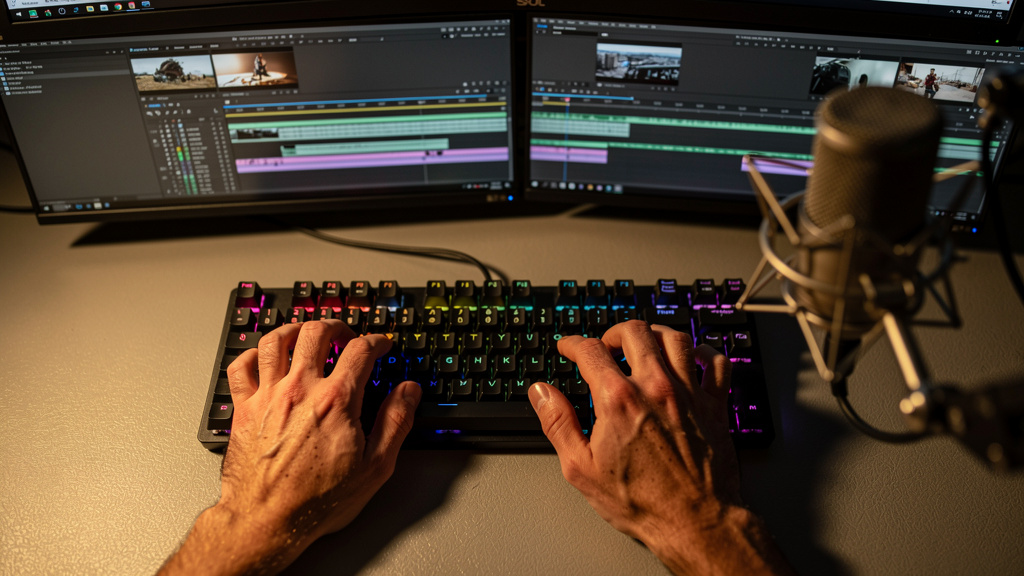
Screen recording software captures what appears on your display and saves it as a video. A good recorder can grab the full desktop, a window, or a region, while recording microphone audio, system sound, and often a webcam feed.
Older tools stopped there. Modern recorders behave more like communication hubs, with trimming, annotations, captions, instant cloud links, comments, and viewer stats so a simple clip can train, sell, or document work far more clearly than text alone.
Across a business, video supports many everyday tasks:
- Teams record quick walkthroughs instead of long tickets.
- Support staff send visual guides instead of step lists.
- Sales reps send personal demos and follow‑ups.
- Product and IT teams log bugs, procedures, and releases.
At VibeAutomateAI, we see screen recordings as raw material for wider AI workflows. Connected to tools like CrewAI, LangChain, or LangFlow, a clip can become a transcript, step‑by‑step guide, FAQ entry, or draft article with very little extra effort.
Essential Features Every Screen Recording Tool Should Have
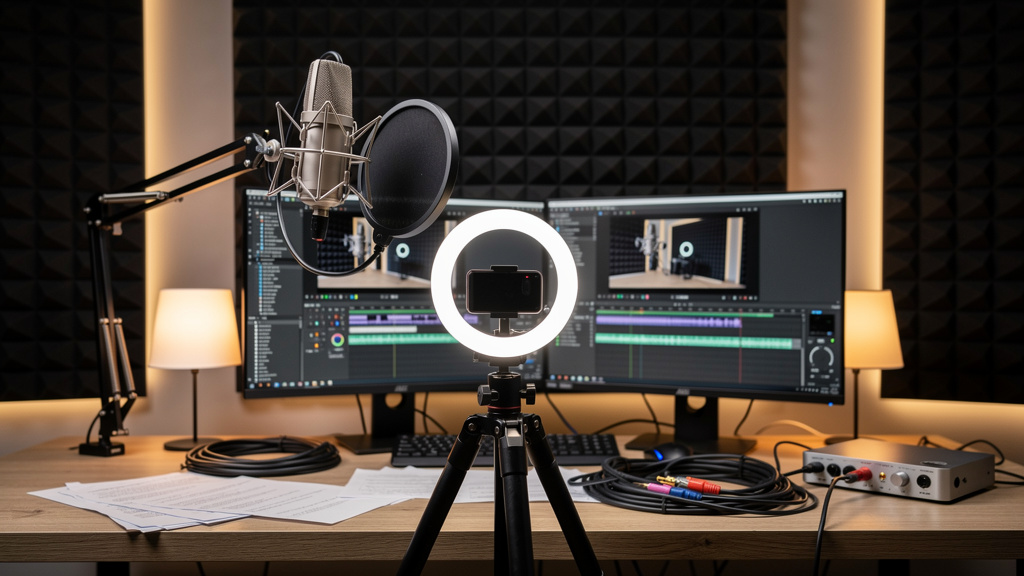
When we evaluate the best screen recorders for Windows and Mac for serious work, a few basics matter much more than nice‑to‑have extras. Without them, teams hit limits fast and fall back to clumsy workarounds.
- Flexible Capture And Audio
Record full screen, a single window, or a custom area, ideally across multiple monitors. Mix microphone voice, system sound, and separate tracks so you can adjust levels later. - Webcam Support
Many use cases need a small facecam over the main screen or webcam‑only clips for quick updates. That human presence makes tutorials, internal messages, and sales videos feel more personal. - Quality And Performance
Professional work calls for HD or 4K output with steady frame rates so text, cursor moves, and animations stay sharp. At the same time, the app should stay light so it doesn’t slow games, design tools, or dev environments. - Sharing, Editing, And Security
At minimum, look for instant cloud links, local MP4 export, basic trimming, and simple annotations like arrows and text—features that most free online screen recorders now offer as standard. Cross‑platform support plus encryption, access control, and admin settings for retention matter for any business team.
Top 12 Screen Recording Tools Compared
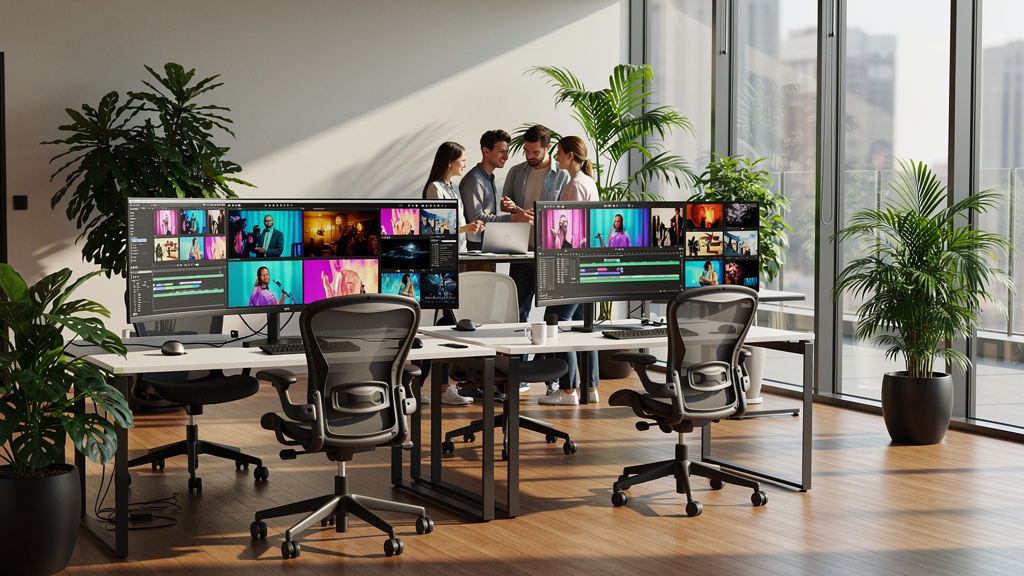
1. VibeAutomateAI (AI-Powered Workflow Integration)
VibeAutomateAI is not a recorder; it handles what happens after you hit stop. We build workflows where recordings from tools like Loom, OBS Studio, or ScreenRec run through AI frameworks such as CrewAI, LangChain, and LangFlow.
Those workflows add transcription, auto‑tagging, repurposed content, and routing into CRMs, project tools, or knowledge bases—particularly valuable given the rise of short-form video consumption in business communication. Pricing is custom to your stack and data needs.
2. OBS Studio (Open Broadcaster Software)
OBS Studio is the go‑to free option for users who want full control. It combines screen capture with studio‑style scenes and live streaming, mixing displays, webcams, game feeds, and media files.
A multi‑channel audio mixer, filters, and hotkeys give broadcast‑level flexibility, but there’s a steep learning curve and no built‑in cloud sharing, so files must be managed elsewhere.
3. Loom
Loom is built for quick business communication. One click starts a screen, webcam, or combined recording, and when you stop, a shareable cloud link is ready in seconds.
Viewers can add time‑stamped comments and reactions, while AI tools draft titles and summaries. A free tier supports short clips; paid plans add longer videos, SSO, and governance but only light editing.
4. Camtasia
Camtasia combines reliable screen capture with a full timeline editor, so you can record and polish in one app. It supports screen, webcam, and system audio on multiple tracks for complex projects.
Zoom and pan effects, cursor highlights, callouts, quizzes, and templates make it popular for training and onboarding. Licenses are sold as a one‑time purchase, though the price is higher than lighter tools.
5. ScreenRec
ScreenRec is a lean recorder built around instant sharing and strong security. It uploads while you record, then copies a private, access‑controlled link to your clipboard the moment you stop.
Recordings use encryption and private cloud storage, with options for passwords, IP restrictions, and offline capture. Editing is basic, so many teams pair ScreenRec with tools like VibeAutomateAI when they want transcripts or repurposed content.
6. Snagit
Snagit focuses on fast screenshots first and video second. It excels at static capture and annotation, grabbing windows, regions, or scrolling pages, then adding arrows, text, and effects.
For video, Snagit records screen and webcam with simple trimming, plus handy tools like text extraction from images. It is popular with technical writers, support teams, and educators who need lots of quick visual guides.
7. ShareX
ShareX is a free, open‑source power tool for Windows users who love automation. It supports many capture methods, custom hotkeys, and automatic uploads with naming rules and image effects.
For video, it records full screen or regions using various codecs, then sends files directly to self‑hosted storage or third‑party services. The interface can feel dense, but advanced users gain huge flexibility at no cost.
8. Screencast-O-Matic (ScreenPal)
ScreenPal (formerly Screencast‑O‑Matic) keeps things simple, especially for teachers and small businesses. It offers an easy recorder for screen, webcam, or both, with drawing tools available during capture.
A friendly editor supports trimming, captions, and overlays, plus hosting that lets you manage a video library without external sites. Free plans include watermarks; low‑cost paid plans add higher limits and classroom features.
9. Bandicam
Bandicam targets gamers and anyone capturing heavy graphics work. It hooks directly into DirectX and OpenGL output, delivering high frame rates and hardware‑accelerated recording with minimal performance loss.
Desktop capture, scheduled recordings, and mouse highlights are included, but editing is light, so serious projects usually move into another editor. Bandicam runs on Windows only; the paid version is a one‑time purchase without watermarks.
10. CloudApp
CloudApp blends screen recording, GIF creation, and annotated screenshots for fast visual communication. Short recordings can become looping GIFs that show UI changes or quick how‑tos without sound.
Everything uploads to a cloud library with folders, comments, and branded links. Integrations with Slack, Microsoft Teams, Trello, and Asana keep feedback close to ongoing work, with paid plans starting under ten dollars per user per month.
11. Movavi Screen Recorder
Movavi Screen Recorder sits between simple and advanced tools. It offers scheduled captures, drawing during recording, keystroke or mouse highlights, and webcam options with background tweaks.
A built‑in editor lets you trim, add transitions and titles, and adjust audio quickly. It runs on Windows and macOS and is usually sold as a discounted one‑time license, which many professionals appreciate.
12. Vidyard
Vidyard focuses on sales, marketing, and customer success. It pairs screen recording with a strong hosting and analytics platform that ties directly into revenue tools.
Sales reps can send personal video emails and see who watched, for how long, and which parts they replayed. Marketing teams get branded players, calls to action, SEO‑friendly embeds, and CRM integrations with systems like Salesforce and HubSpot.
How to Choose the Right Screen Recording Software for Your Needs
With so many options, start by asking what job the tool must do. Internal process clips for a ten‑person team need very different features from polished public tutorials or revenue‑tracked sales videos.
Next, list technical needs: HD or 4K, frame rate, multiple audio sources, or scene‑based layouts for live events. If deep editing matters, that points toward tools like Camtasia or Movavi instead of lighter one‑click recorders.
Collaboration and security come right after quality. Solo creators can live with local files and manual uploads; larger teams usually want cloud libraries, comments, analytics, encryption, SSO, and retention policies.
Budget and platform support finish the picture. Free and open‑source tools save money but can cost time to set up, while paid options add convenience. Many organizations then work with VibeAutomateAI to route recordings from their chosen tool into AI agents that create transcripts, documents, and reports automatically.
Advanced Use Cases Maximizing Your Screen Recording Investment
Once screen recording software is in place, many teams stop at ad‑hoc clips, even though studies on screen time and content acquisition show that structured, intentional video consumption leads to better knowledge retention. You gain far more value when recordings feed structured systems instead of sitting in random folders.
- Searchable Knowledge Bases
Tag and transcribe key process videos so people can search by topic, app, or team instead of repeating questions or meetings. - Training Pipelines
Turn a single recording into written steps, refresher clips, and quiz questions, leveraging research on statistical software usability that shows well-structured documentation improves learning outcomes. Through VibeAutomateAI, transcripts can feed AI models that draft SOPs, onboarding paths, and certification material. - Sales And Customer Libraries
Standardize reusable demos and how‑to videos, then link them to CRM contacts with view tracking. Sales and success teams can see which clips close deals or reduce support tickets. - Product And Engineering Workflows
Attach recordings directly to bug reports or feature requests in tools like Jira. Over time, this creates an audit trail of behavior across versions; AI agents can then surface common patterns or risky areas.
Security Best Practices for Business Screen Recording
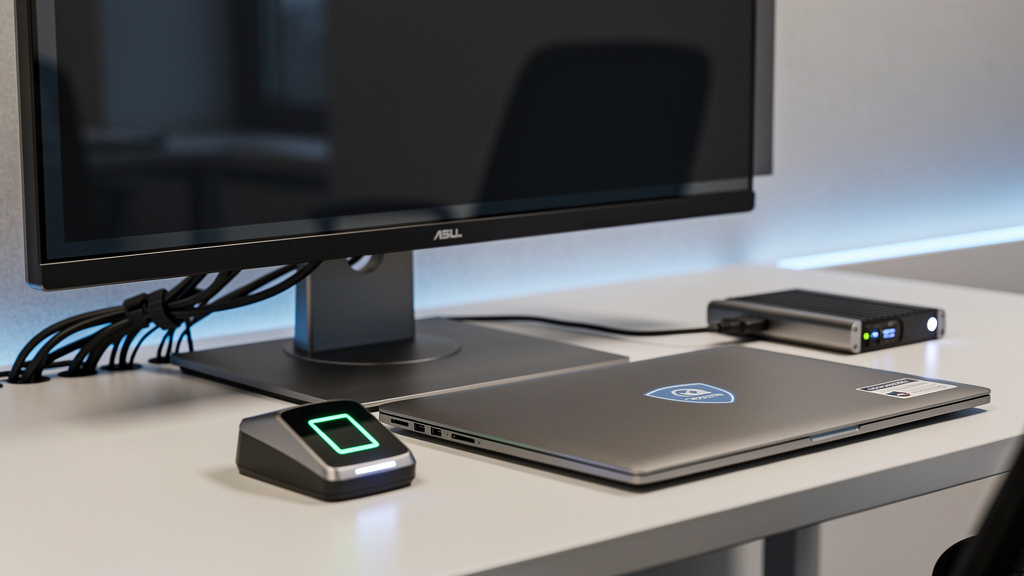
Any time you use screen recording software at work, security should be front of mind. A single careless capture can expose customer data, private keys, or strategy if people record the wrong window or notifications.
Simple habits help: close unrelated tabs, silence pop‑ups, hide password managers, and avoid showing personal accounts before you press record.
On the technical side, prefer tools that encrypt data in transit and at rest, offer granular access control, and support SSO. Set rules for who may view recordings, how links are shared, and when passwords or domain limits apply.
Retention policies matter too: not every clip should live forever. Use time‑based deletion and audit logs so you can see who viewed what, and train staff on content that must never appear in recordings.
When you connect recorders to VibeAutomateAI, we design AI workflows around these same rules, with strict data handling and logging baked in from day one.
As security expert Bruce Schneier notes, “Security is a process, not a product.”
Frequently Asked Questions
What Is The Best Free Screen Recording Software?
There is no single best free screen recording software, but several stand out. OBS Studio gives advanced users studio‑level control. ShareX suits Windows power users. Loom and ScreenRec cover quick business communication with free tiers and instant cloud links.
Can I Record Screen And Webcam Simultaneously?
Yes. Most screen recording software can capture the screen and webcam at the same time, usually with picture‑in‑picture. Tools like OBS Studio, Camtasia, and Movavi also let you resize, reposition, or style that webcam view.
How Do I Record System Audio And Microphone At The Same Time?
Most tools let you record microphone input and system sound together. Pick both sources in settings and adjust levels so your voice stays clear. On macOS you may need a helper driver, so run a test before important sessions.
What Format Should I Save My Screen Recordings In?
For most use cases, MP4 with the H.264 codec is the safest output from screen recording software. It balances quality and file size and plays almost everywhere. MOV suits Apple‑heavy setups, while WebM fits some browser‑first workflows.
Is Screen Recording Legal For Business Use?
Screen recording is legal in many business situations when you have consent and follow privacy rules. Announce when meetings or calls are recorded, avoid capturing unrelated personal data, and follow regulations such as GDPR or CCPA on storage and access.
Conclusion
Screen recording software has grown from a small utility into a core part of how teams communicate and document work. It replaces long meetings with short clips, shows customers exactly what to do, and gives new hires repeatable training material.
The tools in this guide span free open‑source recorders like OBS Studio and ShareX, editing‑focused apps such as Camtasia and Movavi, fast async messengers like Loom, ScreenRec, CloudApp, and ScreenPal, plus business platforms including Vidyard.
Security, integrations, and future plans matter as much as core features. When recordings are treated as inputs to AI workflows—through partners like VibeAutomateAI—they can power transcripts, SOPs, training paths, and knowledge bases with far less manual effort.
The best next move is simple: pick one clear use case, test two or three tools with real tasks, and measure time saved and clarity gained. Then decide which recorder—and which AI workflow—deserves a permanent spot in your stack.
Stay connected