Introduction
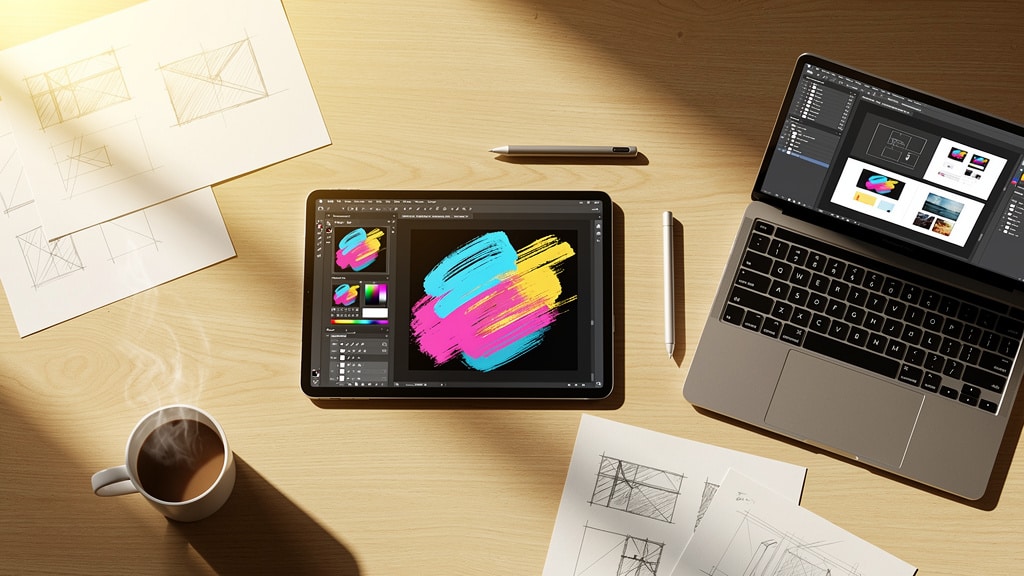
Whiteboards once ruled planning sessions. Then drawing apps arrived, and the mix of scribbles, arrows, and screenshots moved onto shared screens. What started as tools for artists now sits at the center of project reviews, lesson plans, and pitch decks.
We now see drawing apps in the hands of engineers, digital marketers, founders, teachers, and students. An illustrator may push pressure‑sensitive brushes to their limit, while a product manager just wants fast, clean flowcharts that look good in a slide deck. The tools sit on the same devices, yet the needs are very different.
That gap is where smart selection matters. The right choice depends on brush engines, layers, precision tools, cross‑platform access, cloud sync, and collaboration. It also depends on how well a tool connects to the rest of the stack. At VibeAutomateAI, we help teams fit drawing apps into AI‑ready workflows so content scales without chaos or security issues. In this guide, we compare core features, advanced options, use cases by role, platform access, collaboration, pricing, and how to align all of that with real business needs.
Key Takeaways
-
Different Roles, Different Needs. Modern drawing apps serve far more than artists. Illustrators need fine control and nuance, while business users often care more about clear diagrams and fast feedback. A good decision starts with a clear map of who will use the tool and why.
-
Strong Fundamentals Matter. A solid brush engine, layers, blend modes, and precision tools form the base for serious work. Even business users benefit from these basics when they annotate screenshots or refine diagrams. Weak fundamentals slow everyone down.
-
Smart Features Save Time. Advanced options such as shape helpers and AI‑based graphic matching turn rough ideas into clean visuals in minutes. Features like Shape Assist mean a shaky hand can still produce sharp flowcharts that stay easy to edit.
-
Access Across Devices Is Now Expected. Cross‑platform access and dependable cloud sync matter as much as any brush. Teams move between laptops, tablets, and phones in a single day. Strong account systems with autosave reduce risk from hardware loss and help remote or hybrid teams stay aligned.
-
Collaboration Changes How Teams Draw. Real‑time collaboration, comments, and shared canvases turn a simple sketch tool into a virtual workshop. When those tools plug into structured workflows, organizations gain faster reviews, clearer feedback, and fewer email chains full of screenshots.
As one art director told us, “The best digital canvas is the one that disappears so you can focus on the idea, not the tool.”
Essential Features Every Drawing App Should Offer
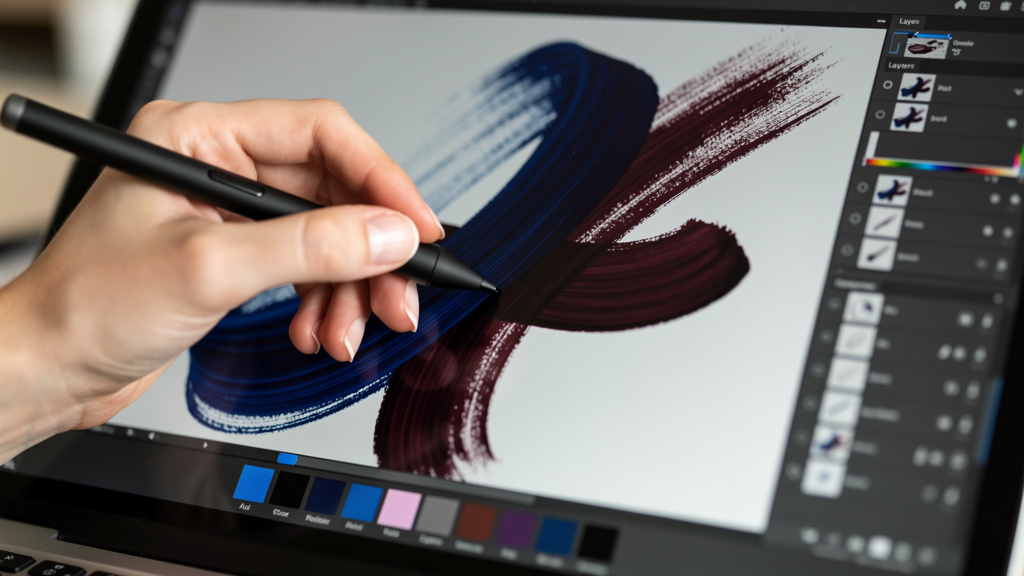
When we review drawing apps for clients, we start with the basics. If the foundation is weak, no amount of clever AI or templates can save the experience. Solid drawing tools should feel as natural as pen and paper, while still giving digital speed and control.
A strong brush engine sits at the heart of this. Good drawing apps offer pencils, markers, airbrush tools, and smear or blend tools that behave in a believable way. In artist‑focused tools such as SketchUp: 3D Design Software and Sketchbook, each brush can respond to stylus pressure so thick and thin strokes appear in a single line. In lighter tools like Canva Draw, the set is smaller and simpler, which works well for quick notes and arrows on top of a layout.
Customization matters next. Users should be able to adjust color, thickness, opacity, and texture with very little friction. An illustrator may create a custom brush for hair or fabric, while a marketer may only tweak thickness for arrows and callouts. Either way, the app should remember those choices so people do not repeat the same setup every time.
Layers form the backbone of any serious workflow inside drawing apps. With layers, a user can place line art, color fills, shading, and text on separate levels. That structure means a mistake in one area does not ruin the entire piece. Blend modes add another level of control, since they define how color on one level mixes with the one below. Even if a business user never touches advanced modes, the ability to stack annotations and base images on separate layers is very helpful.
We also look at the basic toolkit. Pens, highlighters, and erasers handle quick notes, underlines, and corrections during reviews. Low delay from stroke to screen and good stylus support help the whole package feel natural. When these core pieces work together, both artists and non‑designers can focus on ideas instead of fighting the app.
To make these essentials clearer, most teams look for:
-
Natural brushes that respond to pressure and speed
-
Easy customization of color, size, opacity, and texture
-
Layer support with sensible blend modes
-
Responsive input, especially for pen‑based devices
Advanced Tools For Precision And Productivity
Once the fundamentals pass the test, we look at features that save time and improve clarity. For many teams, this stage matters more than pure art tools, because it shapes how fast people can move from rough thought to shareable visual.
Precision instruments come first, building on core What Is CAD? principles. Guides, rulers, and special stroke tools help users create straight edges, smooth curves, and neat shapes. An architect may outline room plans with these aids, while a security lead may map network zones and data flows. Without such tools, diagrams look uneven and feel less trustworthy in a board slide or client report.
Modern drawing apps now add smart helpers on top of that. Canva’s Shape Assist is a clear example. A user draws a rough circle or box, and the app snaps it into a clean, balanced shape. That single step removes the need for deep drawing skill, yet still gives professional output. When a project manager needs a flowchart for a meeting in an hour, this kind of feature makes the difference.
Some platforms go further and treat each stroke as an editable graphic. In Canva, a hand‑drawn arrow can act like any other object. A user can resize it, flip it, or change its color after the fact. This mix of freehand feel and vector‑style control shortens revision cycles, because teams adjust instead of redraw.
AI‑assisted tools now add another layer, with applications extending even to Top AI Tools for Creating Scientific Figures. Early versions match rough sketches to a library of finished graphics that fit the same idea. For example, a messy icon for a cloud can turn into a polished symbol from the app’s library. When we design workflows at VibeAutomateAI, we help teams decide where such AI helps and where it may risk off‑brand visuals or data leaks, then build clear rules around that use.
Used well, these advanced tools keep routine work inside the team:
-
Product managers create their own diagrams
-
Marketers mark layouts with precise notes
-
Trainers prepare visual explainers without a long queue in front of the design group
Cross-Platform Accessibility: Drawing Anywhere, Anytime
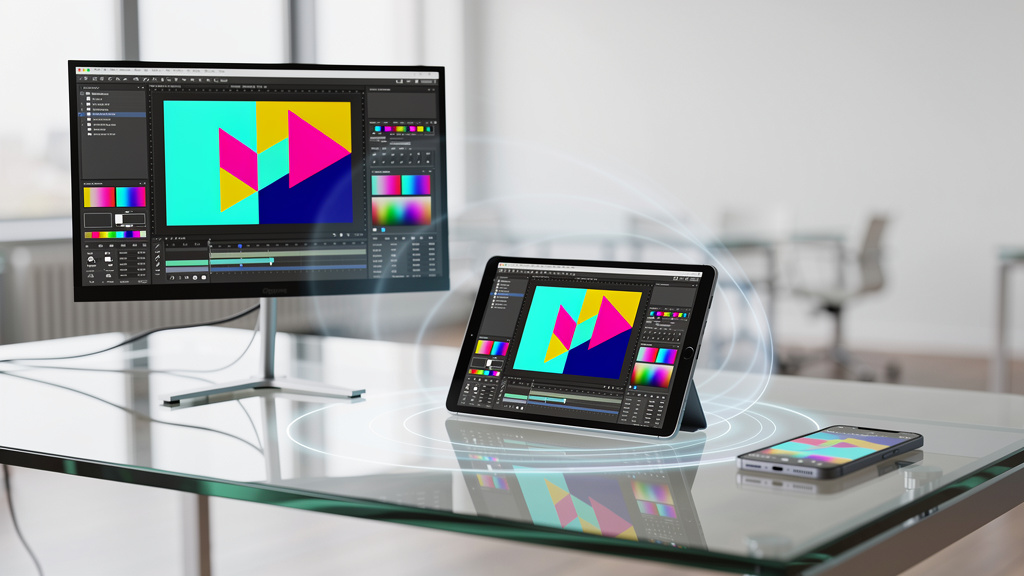
For modern teams, the best drawing apps follow people from desk to couch to client site. A tool that only shines on one device rarely fits real work patterns. We look closely at platform support and cloud behavior before we recommend any option.
Strong apps run in a browser, on desktop systems, and on mobile devices. Web access matters for quick edits on shared machines. Native apps for tablets and phones matter for stylus work and on‑the‑go reviews. Canva Draw and similar tools cover web and mobile well, while Sketchbook offers solid apps for tablets and Chromebooks that focus on the drawing feel itself.
Cloud sync then decides how smooth the day feels. With an account system and automatic online save, a user can start a sketch on a tablet, then open the same file on a laptop minutes later. Canva follows this model, with cloud storage that updates in the background and free space for many small projects. Paid plans add more storage, which helps when teams keep large asset libraries with many images.
When an app has no sign‑in or cloud service, the story changes. Some Sketchbook users, for example, note that work lives only on the device where they create it. That may suit a solo artist with one tablet, yet it hurts a manager who moves between a work laptop and a home machine. Hardware loss or upgrade can mean lost art.
For IT leaders who support remote or hybrid staff, these details are not side issues. Sync, backup, and device flexibility tie into business continuity and security planning. At VibeAutomateAI, we often map how drawing apps line up with existing storage rules so teams enjoy freedom without surprise gaps.
Collaboration Features For Modern Teams

Drawing apps now serve as shared thinking spaces, not just solo sketchbooks. When we evaluate tools for marketing teams, product groups, or training units, collaboration features sit near the top of the checklist.
Annotation tools bring the old red‑pen review into the digital space. Team members can circle a confusing label, underline copy that feels weak, or draw an arrow from a note to a chart. This mirrors the feel of a printed markup, yet the file stays clean and versioned. For digital marketers, this speeds layout reviews. For engineers, it helps during diagram checks before deploys.
Real‑time editing takes that idea further, with platforms like Figma: The Collaborative Interface Design Tool and Canva enabling several people to stand inside the same file at once. Each cursor moves live, and new shapes or strokes appear as they draw. That kind of shared canvas turns weekly status calls into active whiteboard sessions. Product managers sketch flows while stakeholders adjust labels, and everyone leaves with one agreed visual, not five different screenshots.
Integrated comments keep context close. Users can click a part of the drawing, add a note, and tag another person who must respond. Many tools also support simple task flags so a comment doubles as an action item. This reduces tool‑hopping between chat apps, email, and ticket systems. The design file becomes the place where discussion and decisions sit together.
Artist‑first apps like Sketchbook focus more on the solo craft. They still allow export for sharing, yet lack deep live collaboration. Business‑oriented platforms such as Canva focus heavily on shared work. At VibeAutomateAI, we connect those collaboration features to wider workflows so feedback from drawing apps flows into project boards and approval systems without messy copy‑paste work.
As one product manager put it, “When everyone can see and edit the same diagram, most arguments turn into problem‑solving instead of finger‑pointing.”
Drawing Apps For Different Professional Needs
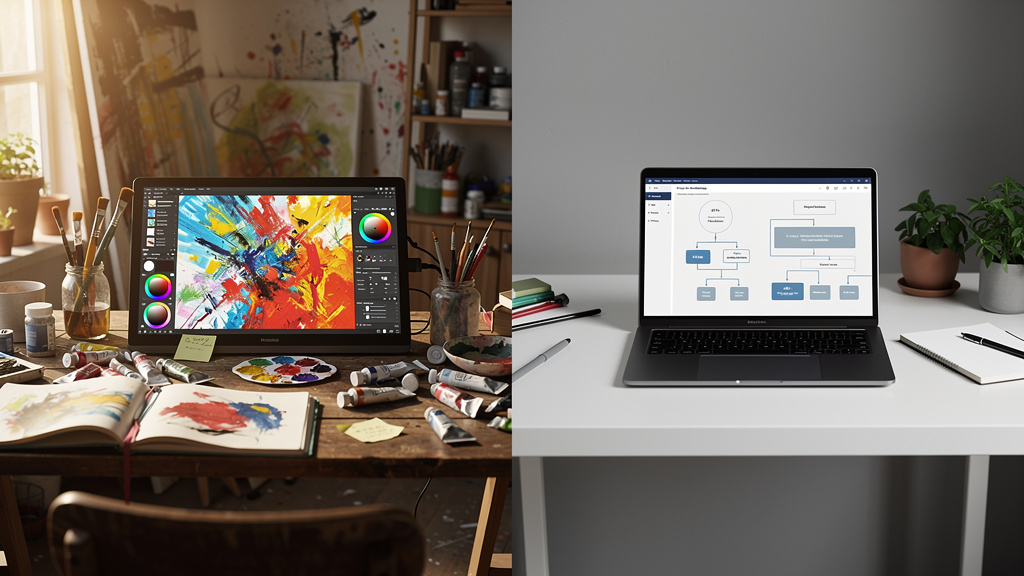
Not every role wants the same thing from drawing apps. When we guide a client, we often divide needs into a few clear groups. That structure makes trade‑offs easier to see and avoids one noisy team setting the standard for everyone.
Artists And Illustrators
Professional artists treat drawing apps as their main studio. Their top need is a natural feel that mirrors pens, brushes, and markers on real paper or canvas. For them, pressure response, tilt support, and brush texture matter far more than slide templates or real‑time comments.
They gravitate toward apps with wide brush libraries and deep settings. Sketchbook, for example, offers many brush types that users can tune in detail. A layered file structure with blend modes lets them mix light and shadow, try alternate color schemes, and keep complex scenes tidy. A clean interface with minimal clutter keeps attention on the canvas for long sessions.
File formats also matter a lot. Many artists pass work into Adobe tools, so PSD support is a key point. That way they can sketch in their favorite drawing app, then send the layered file to a client or to a designer who handles print‑ready layouts.
Business Professionals And Marketing Teams
Business users lean on drawing apps as visual thinking tools. Their main goal is fast creation of clear charts, flows, and annotations that fit into decks, documents, and dashboards, following principles outlined in Data meets creativity: Authentic visualization approaches. Most of them do not want to spend hours tuning brush settings.
Shape‑assist features serve this group very well. A rough box becomes a neat process step, and messy arrows turn into clean connectors. Annotation tools let teams mark layouts or product screenshots during reviews. Real‑time collaboration means sales, marketing, and product can sit inside the same board and adjust ideas together.
These teams care about links to the rest of their tools. Easy export to slides, documents, and project trackers keeps the work moving. At VibeAutomateAI, we help create on‑brand templates and structure inside these platforms so business teams ship good‑looking visuals on their own and rely less on agencies for routine pieces.
Educators And Students
Teachers and students use drawing apps as learning aids. Their priority is a simple, friendly interface that works on school hardware and home devices. They value access more than advanced brush tricks.
Shared whiteboards allow whole classes to add ideas during a lesson. A teacher can pose a problem, invite answers on the canvas, and discuss patterns in real time. Students can create their own diagrams, quick mind maps, and visual reports. When teachers annotate homework directly on screen, feedback feels clear and personal.
These habits help students understand tricky topics with pictures instead of text alone. Over time, they gain confidence in visual thinking, which supports later work in tech, design, and business roles.
As one teacher told us, “When students draw a concept instead of just reading about it, it sticks.”
Integration Capabilities And Platform Compatibility
A drawing app rarely lives alone. For many of our clients, the real question is not only “What can this tool do?” but also “How well does it fit with the rest of our stack?”
Support for common file formats is the first gate. For creative pros, PSD support stands out. When a drawing app exports layered PSD files, an artist can move easily into Photoshop for detailed edits or print prep. Standard exports such as JPG, PNG, and PDF are basic needs as well, since clients, partners, and non‑design staff rely on those formats.
Some platforms follow a single‑platform model. Canva is a clear example. The drawing tool sits inside a larger design system where slides, social posts, videos, and documents all share the same asset library. A sketch becomes just another object that users can drop into many templates. This suits teams that want one hub for most content work.
Many businesses also want small bridges between drawing apps and line‑of‑business tools. Automation platforms such as VibeAutomateAI, Zapier, or Gumloop can send finished files into storage folders, ticket systems, or approval flows. For example, a marketing team may route every final drawing into a digital asset library with tags, while a product team may create review tasks when a mockup reaches a certain folder.
At VibeAutomateAI, we map these links carefully. We chart where files start, where they move, which teams touch them, and which systems need a record. That map helps clients choose drawing apps that fit their tech stack instead of living as yet another silo.
For most organizations, the integration checklist includes:
-
Support for PSD, PNG, JPG, and PDF
-
Direct connections to storage (Drive, SharePoint, etc.)
-
Hooks into project trackers or ticketing tools
-
Safe ways to plug in AI services where they add real value
Pricing Models: Finding The Right Financial Fit
Cost structure often decides whether a drawing app spreads inside an organization or stays in a corner. We encourage clients to look beyond headline prices and consider how each model fits real use.
Free tools form the starting point. Canva Draw, for example, offers strong whiteboard and annotation features at no direct cost. That type of option helps schools, non‑profits, and early‑stage teams start visual work without budget approval cycles. Some artist tools also offer free tiers with enough depth for many solo creators.
Freemium tools with one‑time upgrades appeal to individuals and small firms. Sketchbook’s paid unlock model is a common pattern. After a single fee, users keep access to advanced features without monthly bills. People who dislike subscriptions often favor this path.
Subscription models show up in broader design platforms. A free tier may cover basic drawing features, while paid plans add more storage, templates, and team controls. This pattern suits marketing departments and agencies that treat these tools as core infrastructure and can assign the spend to operating budgets.
Larger firms may also look for enterprise terms. Those plans add admin controls, single sign‑on, security features, and support contacts. When we help clients review total cost, we fold in training time, integration work, and savings from lower agency use. That full view often changes which option feels best.
How VibeAutomateAI Helps You Choose And Implement The Right Drawing Tools
Many teams pick drawing apps by gut feel or a single feature demo. We take a different path. Our aim is to match tools to real work, then fit those tools into safe, efficient workflows.
We start with a clear review of the current stack, team skills, and goals. That review covers devices, storage rules, security needs, and the types of visuals each group produces. From there, we build a short list of drawing apps that cover those needs. We do not chase trends; we look for practical fit.
Next, we design how work should move. We define where ideas start, how drafts move through review, which folders hold final assets, and how AI features should or should not assist. We connect drawing apps to project trackers, storage, and, when helpful, AI agent frameworks that handle repetitive handoffs.
Brand control sits at the center of this plan. We help create locked templates, clear logo and color libraries, and sensible folder structures. That way, any drawing that enters a slide or report still fits the brand. For AI features inside creative tools, we add rules about data, privacy, and allowed use so teams gain speed without hidden risk.
We also train people. Our tutorials cover core features, smart helpers, and safe patterns. Sales, marketing, HR, and training teams learn how to create effective visuals on their own. Over time, clients see faster content cycles, fewer design bottlenecks, and lower outside agency spend, all without loss of control.
Conclusion
The “best” drawing app is not the same for every team. An illustrator who lives in brush menus all day needs depth that a busy sales leader may never touch. A school that runs shared tablets needs simple, stable tools more than complex options that slow students down.
Smart selection starts with core features such as brushes, layers, and basic tools. From there, it moves to precision aids, smart shape helpers, AI features, cross‑platform access, cloud sync, collaboration, and links to other systems. Pricing and admin controls tie the picture together for leaders who must manage cost and risk.
Drawing apps now push visual work into every corner of an organization. When they sit inside clear workflows and strong brand rules, they let more people create useful, on‑brand visuals without constant help from a central design group. As AI spreads through creative platforms, the winners will be teams that connect these tools to thoughtful process and security plans. If that next step feels hard, VibeAutomateAI is built to guide it, from first pilot to full rollout.
FAQs
Question 1: What’s The Difference Between Drawing Apps For Artists Versus Those For Business Teams?
Artist‑focused drawing apps center on the creative craft. They offer wide brush libraries, deep control over texture and pressure, advanced layers with blend modes, and clean workspaces that fade into the background. Business‑oriented tools such as Canva Draw focus on fast, clear diagrams, simple annotation, real‑time collaboration, and easy links to slides and documents so non‑designers can share ideas quickly.
Question 2: Do I Need A Drawing Tablet Or Stylus To Use Drawing Apps Effectively?
For detailed illustration, a pressure‑sensitive stylus on a tablet feels far better than a mouse. It gives smooth control over line weight and shading, which matters for professional art. For business uses such as diagrams, whiteboards, and markup, a mouse or trackpad works fine, especially when the app includes smart shape tools that clean up rough strokes.
Question 3: Can Drawing Apps Replace Professional Design Software Like Adobe Illustrator Or Photoshop?
Drawing apps cover sketching, annotation, quick diagrams, and early concept work very well. They do not fully match the advanced layout, print, and photo tools inside Illustrator or Photoshop. Many teams use both types of tools. An artist may sketch in Sketchbook, export a PSD file, and then refine it in Photoshop. For routine charts and slides, though, an integrated platform such as Canva often removes the need for heavy design software.
Question 4: How Important Is Cloud Synchronization, And What Happens If An App Doesn’t Have It?
Cloud sync matters a lot once people move between devices or work in remote setups. With sync, a file stays up to date on laptop, tablet, and phone, and autosave protects against crashes or lost hardware. When a drawing app lacks this feature, work can stay locked on one device. That risk grows during upgrades, repairs, or shared projects, so we advise teams that rely on collaboration to choose tools with strong cloud support.
Stay connected