
Introduction
Most technical teams don’t lose hours all at once—time slips away in tiny tasks: a status update here, a manual sync there, a quick copy-paste. They seem small, but they add up quickly. When you automate Notion effectively, that constant trickle of admin work starts to vanish.
For developers, QA, DevOps, and IT teams, Notion often becomes the nerve center. It holds sprint boards, incident logs, test plans, design docs, and meeting notes. Without automation, someone still has to assign tasks, chase updates, move cards, notify owners, and mirror changes from tools like GitHub or PagerDuty. That constant context switching quietly destroys deep work.
We treat Notion automation as infrastructure, not a nice extra. The goal is simple: design clear workflows, then let Notion react to events automatically. Triggers fire when a page is added, a property changes, or a schedule hits. Actions then update properties, create pages, send Slack messages, call webhooks, or hit APIs. Done right, you automate Notion so it behaves more like a CI pipeline and less like a shared notepad.
This guide walks through a practical, technical way to automate Notion for serious work. You will see how to use native database automations, triggers and actions, buttons, webhooks, and external tools. We share patterns that work for incident response, sprints, code review, and reporting, plus VibeAutomateAI’s workflow‑first approach so you do not build clever automations on top of messy processes.
Key Takeaways: How to automate Notion effectively
- Start with the workflow, not the tool. When we help teams automate Notion, we first map the real process, agree on ownership, then choose triggers and actions. This avoids rework and stops teams from blaming Notion for process issues.
- Native database automations handle most routine work. Wiring status changes, assignments, and notifications into triggers and actions lets you automate Notion so admin work runs in the background instead of inside people’s heads.
- Three layers inside Notion, a few tools outside. Database automations, buttons, and webhooks give fine control inside Notion. Webhooks, Zapier, Make, and direct API calls handle cross‑tool flows. Together they let you automate Notion without turning your stack into a maze.
- You rarely need dozens of automations. In our work at VibeAutomateAI, the biggest gains usually come from three to five core workflows (incidents, sprints, code review, recurring reports) rather than a huge set of fragile rules.
- Plans and permissions matter. When you automate Notion at scale, you must understand which plans allow database automations, who owns Slack/Gmail connections, how guests behave, and how duplication affects existing workflows. Getting this wrong leads to silent failures.
What Is Notion Automation and Why It Matters: How to Automate Notion for Technical Teams

When we talk about Notion automation, we mean event‑driven workflows. An event happens in a database (a new page, a property edit, or a scheduled time). That trigger starts one or more actions. Actions can edit properties, create pages, send notifications, fire webhooks, or call external APIs. This is how you automate Notion so the workspace reacts to what the team does, instead of waiting for someone to remember the next step.
For developers and DevOps teams, the value is direct. Every manual handoff or status change pulls attention away from real work. Moving a ticket from Ready for Review to In QA, pinging the right Slack channel when severity changes, updating a sprint board after a merge—every one of those can be automatic. When you automate Notion for these flows, the tool becomes a single source of truth that stays in sync without constant nudging.
Across teams, we see technical staff spending fifteen to twenty‑five percent of their time on admin tasks that automation can cover: status updates, task assignment, reminders, meeting prep, and cross‑tool sync. Notion automation acts like “thinking infrastructure” that runs beside your build and deploy pipelines.
There is a hard limit though: automation does not fix unclear processes. If nobody agrees what “Ready” means, or who owns an incident at each stage, any attempt to automate Notion will just spread confusion faster. At VibeAutomateAI we push a workflow‑first rule: map the process on paper, clean it up, then use automation to make it repeatable.
“If you can’t describe what you are doing as a process, you don’t know what you’re doing.”
— W. Edwards Deming
Notion’s Native Automation Capabilities: A Technical Overview to Automate Notion
Before wiring complex flows, it helps to know what Notion can do on its own. Native features already cover a lot of needs, and when we automate Notion for clients, we push these tools far before adding extra platforms.
Database automations sit at the center. On paid plans, every database can have automations that react to page events. Triggers watch for:
- Page added
- Property edited
- Scheduled time (daily, weekly, etc.)
When a trigger fires, actions can:
- Edit properties
- Add pages or update other databases
- Send in‑app notifications, Slack messages, or Gmail
- Send webhooks
All of this runs inside Notion.
Buttons (page blocks and database button properties) are the manual counterpart. They can create pre‑filled incidents, generate meeting note templates, or update many tasks at once. For workflows that need human judgment, we often pair a button with a database automation so a single click kicks off a longer chain.
Webhooks give Notion a way to talk to other tools. An action can send a structured HTTP POST to a URL you control or to an automation platform. Alongside this, the Notion API lets external services read and write database content. That is how we automate Notion in both directions when we need deeper integration.
The permission model shapes who can build and maintain all this. Only users with full access to a database on a paid plan can edit its automations, and guests cannot do it. Some connections (Slack, Gmail) can only be edited by the person who set them up. One automation cannot trigger another, locked databases do not run automations, and multi‑trigger flows using “all” must hit a tight timing window.
Understanding Access Requirements and Plan Limitations
Many teams try to automate Notion and run into invisible walls because of the wrong plan or permissions.
- On the Free plan, you can create simple Slack notification automations and use automations inherited from templates, but you cannot edit those inherited flows. Buttons are available, yet the powerful database automations live on Plus, Business, and Enterprise plans.
- Inside a paid workspace, a user needs full access to a database to create, edit, or delete its automations. Guests never get this power. Slack and Gmail connections are tied to the account that created them.
- When you duplicate a database, most automations copy over, but some connections need to be relinked and permissions may shift.
If you want to automate Notion for a whole team, give a small group of maintainers full access, keep third‑party connections on shared accounts where possible, and document who can change what.
How to Build Your First Database Automation: Step-by-Step Guide to Automate Notion
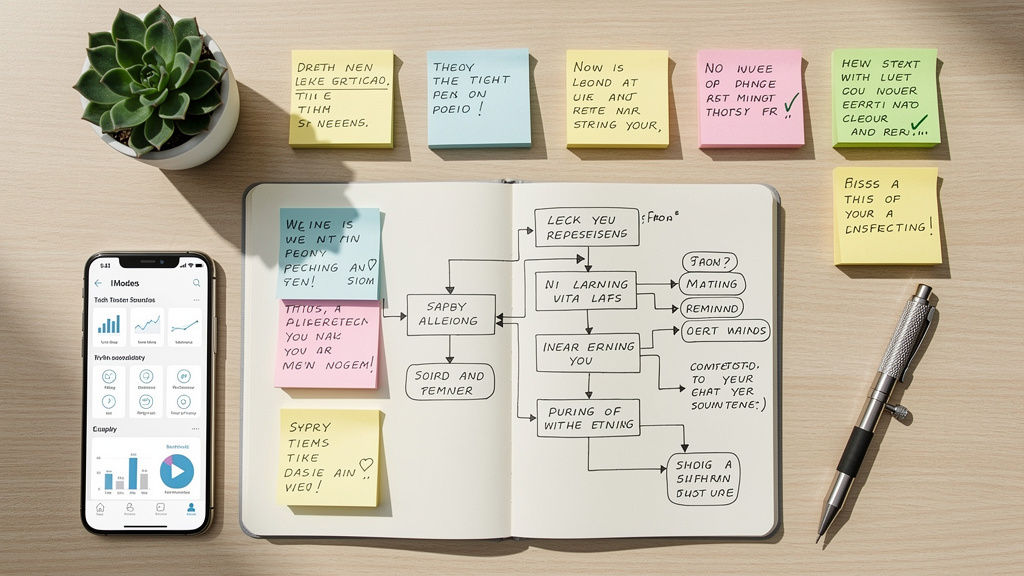
The best way to learn how to automate Notion is to ship one simple, reliable automation. At VibeAutomateAI we call this the pilot pattern.
Before you open Notion, confirm three basics:
- Your workspace is on a paid plan that supports database automations.
- You personally have full access to the target database.
- The workflow is clear (for example: when Status moves to Ready for Review, assign QA and send a Slack ping).
Then:
- Open the database and click the lightning icon to open the automation panel.
- Add a new automation with a clear name, such as QA Handoff – Ready for Review.
- Choose a trigger: e.g., Property edited on Status when it is Ready for Review.
- Add actions: edit Assignee to a QA owner and send an in‑app notification to that person.
Take special care with trigger logic:
- Any = fires when one trigger condition is met.
- All = every condition must happen within a tiny time window.
For property edits, we rarely use all, because humans do not change two fields inside three seconds. Separate automations are cleaner.
Test thoroughly with dummy pages before letting the team rely on it. Change the status, confirm the assignee updates, and check notifications. Monitor behavior for the first week and keep a short feedback loop—this is the pattern we follow whenever we automate Notion in a new workspace.
Mastering Automation Triggers: Key Events to Automate Notion Workflows
Triggers are the starting gun for every workflow. If we pick the wrong event, the automation never fires. When we automate Notion, we spend more time on trigger design than most people expect.
Key trigger types:
- Page added – runs whenever a new row appears. Great for setup tasks like pre‑filling incident defaults or assigning product owners to new feature ideas.
- Property edited – the workhorse. You target a specific property and condition, such as Status is Done or Severity is Critical. This lets you automate Notion based on real state changes.
- Every frequency – schedule‑based (daily, weekly, monthly). Useful for recurring reports, cleanup, or weekly templates. It does not mix with Edit property or combine with other triggers.
When you add more than one trigger, you choose:
- Any – run when at least one event happens.
- All – run only when every event occurs within a short window.
We avoid all for human‑driven edits for reliability.
Common reasons triggers do not fire:
- The database is locked.
- The automation is tied to a view whose filters no longer match the page.
- Another automation is expected to start the workflow (which Notion does not allow).
A careful trigger review is step one whenever an automation goes silent.
Configuring Property Specific Trigger Conditions
Property‑based triggers become far more powerful when you understand condition options by type. This is one of the cleanest ways to automate Notion without overbuilding.
Examples:
- Text / Name – conditions like is, is not, contains. Handy for quick flags such as Hotfix or Spike in titles.
- Select / Multi‑select – options such as is set to, is any of, includes. Perfect for Status, Priority, or Severity fields.
- Number – comparisons (greater than, less than, equal to). Good for alerting when a count crosses a threshold.
- Person – trigger when set, changed, or cleared. Useful for assignment flows.
- Date – react when a due date changes or approaches.
- Relation – fire when related items are added or removed, helpful for parent/child tasks.
Formula and rollup fields cannot serve as direct triggers. A common workaround is to mirror the formula value into a plain property set by another automation, then trigger from that property.
Automation Actions: Operations That Execute Your Workflows in Automate Notion
If triggers say when to run, actions define what happens. Knowing how to combine them lets you automate Notion in ways that feel close to a custom app.
Core actions:
- Edit property – change one or more fields on the trigger page. For multi‑select, people, and relation fields you can add, remove, or replace values.
- Add page to – create a new page in any database, pre‑filled with static values or dynamic data from the trigger page. Great for sub‑tasks, follow‑ups, or post‑incident reviews.
- Edit pages in – bulk‑edit pages that match filters. This lets you automate Notion for cascades, like closing all sub‑tasks when a parent task completes.
Messaging actions:
- Send notification to – in‑app alerts inside Notion, targeted at specific users or person properties like Assignee.
- Send Slack notification to – post to channels or direct messages, ideal for teams that live in Slack.
- Send mail to – send Gmail using static text and dynamic values from the trigger page. Only the person who linked Gmail can edit this action later.
Integration action:
- Send webhook – send JSON to a URL (Zapier, Make, n8n, or your own service). This is the main way to automate Notion alongside other systems.
Glue action:
- Define variables – create reusable variables using formulas or mentions and use them in later actions. This keeps complex automations readable.
Building Multi-Step Workflows and Defining Variables to Automate Notion
Multi‑step workflows are where Notion starts to feel like a real automation engine, and Define variables is the key.
Example: when a parent task moves to Complete, every sub‑task should also complete. To automate Notion for this:
- Use Define variables to capture
Trigger page.Sub tasksinto a variable. - Add Edit pages in and choose that variable as the target instead of a fixed database.
- Set Status on those pages to Complete.
You can define several variables—lists of related pages, calculated dates, or message text—and reuse them across actions. Order matters: later actions can only use variables defined earlier.
Good habits when using variables:
- Add filters that handle empty relations or missing data.
- Temporarily send debug notifications that include variable values, then remove them once the flow is stable.
- Keep each automation as small as you can while still solving the problem.
Dynamic Content Using Mentions and Formulas to Automate Notion Workflows
Static text only goes so far. To automate Notion in a way that feels smart, you need dynamic content that adapts to each page and event.
Two key tools:
- Mentions (@) – within many action fields, you can insert:
- Current date or time
- Users
- Other pages
- Properties from the trigger page
For example, a notification title might include the task Name, while the body mentions the Assignee.
- Formulas (σ) – build computed values:
- Add or subtract dates
- Measure durations
- Join text
- Use simple conditionals
For support teams, we often use formulas to include resolution time in notifications by subtracting Created time from Last edited time and formatting the result. Titles like Weekly Incident Review – 2025‑02‑10 are easy to build this way.
Whenever you add mentions or formulas to actions, test with at least three pages—including edge cases with missing dates or optional fields—so your dynamic automations do not break on odd inputs.
Strategic Automation Use Cases for Technical Teams

Knowing how to automate Notion is one thing; knowing what to automate first is another. For technical teams, a few patterns consistently pay off, including automating research workflows with tools like the Daily RAG Research Paper hub that demonstrates automated knowledge aggregation:
- Incident response – create incidents from templates, auto‑assign on‑call engineers, tag related services, and post to an incidents Slack channel as severity changes.
- Sprint and project management – auto‑assign based on component, drive alerts from status changes, and generate retro docs at the end of each sprint.
- Code review and QA – sync task status with pull request events, notify reviewers when tasks reach Ready for Review, and feed automated test results into QA boards.
- Documentation and knowledge – auto‑categorize new docs, remind owners about stale content, and archive very old material.
- Team coordination and reporting – create weekly meeting notes, daily standup prompts, and scheduled summary reports.
When we automate Notion with clients, we usually start with three to five of these flows for the biggest impact with the least maintenance.
DevOps Specific Workflow: Incident Management Automation
Incident management is where a good setup to automate Notion pays off quickly.
- Design an incident database with fields like Title, Severity, Status, Assigned engineer, Start time, End time, Related services, and Impact summary.
- Add a “New Incident” button on the main ops page that creates a new incident from a template. The template sets Status = Open, Start time = now, and pulls the current on‑call engineer from another database.
- Create a Severity‑based automation: when Severity = Critical:
- Send a Slack message to the incidents channel.
- Send in‑app notifications to the engineering manager.
- Optionally fire a webhook to PagerDuty.
- Close‑out workflow: when Status moves to Closed, another automation:
- Creates a postmortem page from a template.
- Assigns it to the incident owner.
- Sets a due date for the review.
A scheduled trigger can also generate weekly summaries with metrics like mean time to resolution, pulled from formula fields.
Extending Notion With Buttons for Manual Workflows
Not every workflow should run without human input. Some steps need clear intent or review. That is where buttons shine when you automate Notion.
Two types:
- Button blocks – live on any page and can create templates, update tasks, or kick off flows.
- Database button properties – live on rows and act on that specific page.
Use buttons when a human should decide when something happens. Examples:
- A Start Sprint button that moves selected backlog items into the sprint and sets sprint numbers.
- An Approve Request button that sets Status = Approved, assigns an owner, and sends notifications.
- An Escalate Ticket button that reassigns an issue to tier two and pings the right Slack group.
Buttons work best alongside database automations. A button changes a property; that change triggers a deeper automation. Before rollout, label buttons plainly, add confirmation prompts for destructive actions, and test in a sandbox database.
Integrating Notion With External Tools Via Webhooks and API

Most teams use more than one tool. GitHub, PagerDuty, Jira, and Slack still matter. To automate Notion in a real stack, you need clean connections out and back in.
Webhooks are the simplest outbound bridge. A webhook action sends a JSON payload to a URL, often an automation platform (Zapier, Make, n8n) or your own microservice. The receiver can then create or update records in other tools and run additional logic.
The Notion API goes further, allowing external services to read and write pages and databases directly. External systems can watch events from other tools (for example, GitHub or monitoring alerts) and then call Notion to create or update content. Sometimes we skip native automations entirely and let a central service orchestrate both directions.
Common integration patterns:
- Publishing content from Notion to a CMS when status changes.
- Syncing tasks between Notion and another project manager.
- Creating GitHub issues or Jira tickets from feature requests stored in Notion.
Security is key: protect API keys, validate webhook signatures or secrets, and plan for rate limits and error handling so spikes do not flood or stall your data.
At VibeAutomateAI, we compare outside platforms with a simple lens: clean APIs, solid reliability, and real fit with the workflow. Zapier, Make, and others are helpful, but we try to keep the stack to three to five core tools that map to real work.
Connecting Notion to GitHub: A Practical Integration Example
GitHub is central for most engineering teams, so it is a natural partner when you automate Notion.
A typical pattern:
- Task database in Notion with fields like Title, Status, GitHub PR URL, PR status, Review status, and a stable ticket key.
- GitHub webhooks fire when pull requests open, get review requests, and merge.
- An automation platform or custom service:
- Receives GitHub webhooks.
- Extracts the ticket key from the PR title or branch name.
- Uses the Notion API to find the matching task.
- Updates PR status and Status (for example, to In Review or Done).
You can also run it in reverse: when a task in Notion moves to Ready to Deploy, call the GitHub API to add labels or comments on the linked PR.
Key design points:
- Clear matching between tasks and PRs (including multiple PRs per task).
- Stable error handling when a webhook arrives with no matching task.
- Simple, documented logic so the integration can be maintained.
When we automate Notion around GitHub this way, sprint boards become a live view of code movement instead of a lagging report.
Managing and Troubleshooting Your Automations
Once you automate Notion beyond a few flows, maintenance becomes as important as creation.
Each database with automations has a lightning icon at the top. Clicking it opens the automation list, where you can see active and paused workflows. Treat this as an automation dashboard:
- After changing schemas (renaming or removing fields), scan for automations that reference old properties.
- Review descriptions so future maintainers understand each workflow.
Common error types:
- Setup errors – caught while editing (missing properties, invalid formulas).
- Runtime errors – an automation that once worked now fails because a database was deleted or a Slack connection expired. Notion often pauses such automations and shows a notice.
- Silent failures – webhooks send to endpoints that return errors, or formulas hit bad data without clear alerts. For heavy use of webhooks, build monitoring on the receiving side.
When an automation does not trigger:
- Confirm it is active, not paused.
- Check trigger conditions and any view filters.
- Confirm the database is not locked and you have the right permissions.
- Remember that automations cannot chain from other automations—there must be a user action or schedule at the start.
“Automation should never be magic; it should be observable, documented, and easy to turn off.”
— Common SRE principle
Simple habits—short documentation, monthly audits, and retesting after schema changes—keep your effort to automate Notion from decaying into a tangle of half‑working scripts.
Best Practices: Our Workflow First Automation Framework
VibeAutomateAI is built on one core belief: tools do not fix bad workflows. When we automate Notion for technical teams, we follow a workflow‑first framework.
- Map the real process. Who creates incidents? How do they move? When do handoffs happen? What does Done mean? Capture the current state, note pain points, then define a simpler future state.
- Pick high‑friction, high‑frequency tasks. Status changes, assignments, notifications, recurring meetings, and simple reports are ideal starting points. If we can automate Notion so these happen without thought, we free measurable time.
- Start small. Build one automation, test it well, measure time saved, then add another. We consistently see a sweet spot of:
- Three to five core automations, and
- Three to five core tools in the stack.
- Add light governance. Someone owns automation standards, documentation, and review. Changes go through a small check before landing in production databases.
- Extend only when native features run out. When Notion’s tools hit a wall, bring in external platforms or direct API work—but still apply the same workflow‑first mindset.
Our eight‑step rollout pattern is simple: pilot with a small team, measure impact, refine, document, train, expand, review, and repeat. When we automate Notion under this model, teams see real gains without losing control.
Common Automation Anti Patterns to Avoid
Knowing what not to do is just as important as the how‑to when you automate Notion.
Watch for these patterns:
- Over‑automation – wiring flows for tasks that change every week or are faster by hand.
- Automating unclear processes – encoding a messy workflow where status meanings and responsibilities are not agreed.
- Monster automations – first attempts that touch several databases, use multiple triggers, and span many tools. They are hard to debug and maintain.
- Weak testing – no edge‑case checks for empty dates, missing relations, or permission differences between admins and regular users.
- No documentation – nobody knows why an automation exists or how to adjust it, so fear of change grows.
- Tool sprawl – adding extra connectors just because they look interesting.
When we automate Notion, we work hard to keep flows small, documented, and tied to real problems, not the excitement of a new feature.
Top Tools to Extend Notion Automation Capabilities
Native features plus the API go far, but some teams benefit from external platforms, especially as resources like Notion 3.0 Isn’t just a productivity tool anymore but an AI-powered automation platform demonstrate the expanding capabilities available when you integrate external tools. When we automate Notion alongside other systems, we look for clean APIs, consistent behavior, and a good match with the workflow.
- VibeAutomateAI – not another connector, but a set of playbooks, rollout frameworks, and governance checklists for automation. We help technical teams automate Notion without wasting time on low‑value projects, using an eight‑step approach from pilot to scale.
- Zapier – connects thousands of apps through a visual builder. Great when your team has little coding capacity and needs Notion to talk to CRMs, support tools, or marketing platforms. Trade‑offs: added subscription cost and some delay on each run.
- Make (formerly Integromat) – strong logic and visual diagrams with good pricing at volume, ideal for teams comfortable thinking in flows with branches and loops.
- Bardeen – focuses on browser‑based actions so individuals can automate Notion and other web tools they use all day. Better for personal or team‑level workflows than heavy back‑end jobs.
- n8n – open source and self‑hosted, appealing to security‑focused teams with DevOps capacity.
For some needs, we skip third‑party platforms and use the Notion API with custom code. This offers the most control and lower latency, at the cost of engineering time and upkeep. Our general advice: pick the fewest tools that reliably cover your real workflows and skill levels.
Conclusion
Notion automation is quiet infrastructure. It sits behind the scenes, reacting to triggers and carrying out routine work while people focus on harder problems. When you automate Notion on top of clear workflows, you protect deep work time and reduce errors in incident handling, sprints, reviews, and reporting.
You do not need a massive project to start. Pick one painful, well‑defined process—incident creation, QA handoff, or weekly reporting. Build a simple automation, test it carefully, and measure the time and stress it removes. For most teams, native database automations, buttons, and webhooks cover the majority of needs. External tools and direct API work come after those are solid.
The trap is chasing features instead of fixing friction. Every time you think about how to automate Notion, tie the idea back to a real problem and a simple metric. Treat automation as an ongoing practice. Workflows change, tools evolve, and your automations should adapt with them.
VibeAutomateAI exists to make this practical. We bring workflow‑first maps, honest tool comparisons, and an eight‑step rollout plan that keeps your stack lean. If you want to automate Notion without wasting months on the wrong projects, start by mapping your current process, pick one target, and build your first automation this week.
FAQs
Question 1: Can I Automate Notion on the Free Plan
You can automate Notion in a limited way on the Free plan. Free workspaces can:
- Create automations that send Slack notifications.
- Use automations that came from duplicated templates (but not edit those flows).
Core database automations, most action types, and stronger integration features live on paid plans such as Plus, Business, and Enterprise. The Free plan is fine for learning concepts and testing tiny flows. For any serious rollout, start a trial of a paid plan so you can test full automation against real team workflows.
Question 2: Why Isn’t My Notion Automation Triggering
When an attempt to automate Notion does nothing, a few causes show up again and again:
- Expecting one automation to fire another (Notion does not support this).
- The database is locked.
- The page no longer matches the view filter tied to the automation.
- The user who made the change lacks permissions for affected pages.
- Multiple triggers use all, and property edits did not happen within a few seconds.
Start by checking that the automation is active, not paused. Then verify trigger conditions match what you actually changed, and confirm permissions. Simplify conditions, test with a clean page, and watch the automation dashboard for status messages.
Question 3: How Do Notion Automations Compare to Zapier for Workflow Automation
Native automations help you automate Notion itself. They:
- Run inside Notion.
- Cost nothing beyond your Notion plan.
- React quickly to database events.
They are ideal when work stays inside Notion plus simple Slack or email alerts.
Zapier runs outside Notion and connects it with thousands of other tools through their APIs. It is better when you need multi‑step flows that include CRMs, support apps, or marketing platforms. The trade‑offs are added subscription cost and extra delay on each run.
We usually use native automations for core Notion workflows and bring in Zapier only when cross‑platform sync really matters.
Question 4: Can I Trigger a Notion Automation From an External Event or API Call
You cannot directly fire a database automation from an external call, but you can still automate Notion in response to outside events.
The common pattern:
- An external service receives an event (for example, from GitHub or a monitoring tool).
- That service calls the Notion API and updates a property on a page.
- A Property edited automation in Notion reacts to that change.
For more advanced setups, platforms like Zapier or Make can receive many types of webhooks and then call Notion with the right updates. Very high‑volume or complex cases may use a custom service that talks to Notion directly without native automations.
Question 5: What Is the Difference Between Database Automations and Buttons in Notion
Database automations run in the background. Once you automate Notion with these, they fire when trigger rules are met (page added, status changed, schedule reached). No extra user action is needed beyond normal work.
Buttons—both page blocks and database button properties—require a manual click. They are ideal when a person should decide the moment to act or when a confirmation step is important.
In practice:
- Use automations for routine, repeatable steps.
- Use buttons for actions that need judgment or timing from a person.
- Often, combine both: a button changes a property, which then triggers a richer automation.
Read more about Automate Twitter Posts Without Losing Quality (Read First)
[…] 2 hours ago 24 min read […]