

Introduction
Most professionals now live in their browser for six or more hours a day. That makes Chrome less like a simple app and more like a control room for everything from strategy decks to customer calls. In that control room, Chrome productivity extensions are the switches and dials that can speed up work or quietly slow it down.
The problem is obvious. There are more than 200,000 extensions in the Chrome Web Store, with new features and capabilities announced regularly as shown in What’s new in Chrome. No executive, IT lead, or business owner has time to sort through that chaos, test every option, and guess which tools will actually help the team. Install the wrong mix and you get a slower browser, security risks, and even more distraction.
We look at Chrome productivity extensions differently. They are not just convenience add‑ons. In the right hands, they become strategic assets that cut context switching, automate routine work, reduce software spend, and give teams back hours each week. The key is to pick a focused set and roll it out with a clear plan, not through random installs.
In this guide, we walk through a structured way to do exactly that. We start with how to think about extensions from a business and IT perspective, then move into category‑by‑category recommendations for focus, task management, AI, writing, security, and documents. Along the way, we share the evaluation thinking we use at VibeAutomateAI, where our entire focus is turning complex productivity ideas into clear, real‑world playbooks for leaders. By the end, you will have a blueprint to design, test, and deploy a Chrome extension stack that fits your organization instead of working against it.
“A bad system will beat a good person every time.” — W. Edwards Deming
Well‑chosen extensions are one way to improve that system.
Key Takeaways
-
The browser is now a primary work hub, which means Chrome productivity extensions are a strategic lever, not a side project. By treating them like part of your core tech stack, you can cut wasted time, reduce context switching, and improve how teams work across email, docs, and apps.
-
Not all Chrome productivity extensions are ready for business use, and many look helpful while quietly draining RAM or raising security risk. A simple five‑pillar evaluation framework (utility, usability, performance, security, and cost) helps leaders and IT managers decide what to approve and what to block.
-
The biggest gains come when Chrome productivity extensions fit into a broader workflow plan, not just personal preference. Building a core stack, adding role‑based profiles, training people, and setting basic governance turns extensions into a measurable productivity program. VibeAutomateAI provides strategic guidance and step‑by‑step content to help you design, refine, and maintain that program over time.
Understanding Chrome Productivity Extensions: Strategic Value for Business Leaders
At a basic level, Chrome extensions are small applications that plug into the browser to add focused features. Chrome productivity extensions are the group that aim to remove friction from daily work: capturing tasks, blocking distractions, drafting emails, or securing access. They sit on top of the tools a company already uses and smooth the rough edges in everyday workflows.
There is a clear difference between consumer add‑ons and business‑grade extensions:
- Consumer tools often focus on entertainment or personal convenience.
- Business‑ready extensions must support repeatable workflows, work well at scale, and respect company security and compliance needs.
- They should be predictable enough that IT can support them and leaders can rely on them.
When the right Chrome productivity extensions are in place, the gains show up in practical ways:
- Less time clicking between apps.
- More routine work automated.
- Better protection of deep work instead of reacting to every ping.
That leads to faster project turnaround, fewer errors, and a smoother customer experience.
There is also a cost angle. Well‑chosen extensions can reduce the need for extra software licenses by filling gaps directly in the browser. Instead of buying a separate app for every small function, leaders can design a productivity stack of Chrome tools aligned to real workflows. Later sections in this guide also cover how to think about security, performance, and scale so that stack works for both individual users and the wider organization.
How to Evaluate Chrome Extensions: Essential Criteria for Decision-Makers

Before adding new tools to the browser, it helps to apply a clear, repeatable test. We use a five‑pillar framework for Chrome productivity extensions: utility, usability, performance, security, and cost. Looking at each pillar keeps the focus on real business value instead of shiny features.
-
Utility: An extension should solve a specific, visible problem such as constant context switching, manual data entry, or lost focus. If you cannot describe the problem in one simple sentence and say how you will measure improvement, the extension is probably a distraction.
-
Usability: Even the smartest Chrome productivity extensions fail if people avoid them. Look at how long setup takes, how clear the interface is, and whether the average team member can learn it in minutes instead of days. High adoption and low training time are both signs of a good fit.
-
Performance: Extensions run inside Chrome and use memory and CPU. A poorly built tool can slow the browser for the whole team. IT can test this by installing the extension on a few machines, using Chrome’s Task Manager to watch resource use, and checking whether pages feel slower, tabs crash, or fans spin harder.
-
Security: This is non‑negotiable. Every extension request should trigger a quick permission review. Leaders and IT teams should ask who built it, how often it is updated, what access it asks for, and whether there is a clear privacy policy. Open‑source options and well‑known vendors with many recent reviews are usually safer than unknown publishers with vague documentation.
-
Cost: Many Chrome productivity extensions use a freemium model, where basic features are free and advanced options are paid per user. The question is not “Is it cheap?” but “Does this save more time and risk than it costs us?” Consider license fees, admin time, training, and support.
“What gets measured gets managed.” — Peter Drucker
Treat each extension like a small investment: write down what it should improve and how you will check that claim.
To make this practical for IT managers, use a short checklist when vetting any new extension request:
- Start with a one‑line problem statement and success metric. Map the extension’s main features against that problem to confirm they match. If the link feels weak, stop the process there and ask for alternatives.
- Install the extension in a test Chrome profile for a small pilot group. Watch for performance issues, conflicts with other Chrome productivity extensions, and user feedback after a few days of normal work. Use this small trial to refine settings and documentation before any broad rollout.
- Review permissions, privacy policy, and developer history in one sitting. Look for red flags like very broad data access for a simple task, long gaps between updates, or many recent negative reviews. If you are in a regulated industry, include your security or compliance team in this step.
At VibeAutomateAI, we use this five‑pillar approach in our research and playbooks. It keeps the focus on how a tool behaves in real work, which is the lens leaders and IT teams need.
VibeAutomateAI: Top Chrome Productivity Extension for Workflow Automation
When leaders look for Chrome productivity extensions, they often start with the question “Which tool should we install?” At VibeAutomateAI, we start one step earlier: “What is the workflow problem we are trying to solve, and how should an extension fit into that?”
We describe VibeAutomateAI as the highest‑impact “extension” in your stack, even though it runs as a content platform rather than a browser add‑on. The platform focuses on one thing: giving business leaders and technology decision‑makers practical, research‑backed guidance on productivity.
- Our long‑form guides (like this one) are built to be read in under half an hour.
- They bridge the gap between high‑level strategy and hands‑on setup.
- Instead of just listing Chrome productivity extensions, they show how to combine them into workflows that match real business goals.
Many organizations struggle with three problems at once: information overload, scattered tool choices, and limited time to test options. We address those problems by doing the heavy lifting on evaluation, security review, and implementation planning. For each group of Chrome productivity extensions, we explain where they fit, how they interact, and what kind of ROI leaders can expect.
The result is a shift from ad‑hoc installs to a managed productivity stack. With VibeAutomateAI as a guide, teams can pick a small core of must‑have extensions, add role‑specific extras, and roll them out with clear training and governance. Our aim is simple: help decision‑makers use the right browser tools to improve workflows, reduce friction across teams, and gain an edge in how work gets done.
Essential Chrome Extensions for Focus and Distraction Management

Distraction is not just a personal annoyance. Research on attention shows that constant pings, feeds, and ads can cost around two hours of productive time per person each day. For a team of fifty, that is a full workweek lost daily. The right Chrome productivity extensions can reduce that drain by cleaning up the browser and helping people protect their attention.
In this section, we focus on focus tools with strong adoption, clear business value, and low friction. They are ordered by impact and ease of rollout, starting with content blocking and moving into habit support and audio.
uBlock Origin: Comprehensive Content Blocking
uBlock Origin is one of the most effective ways to clean up what people see while browsing. It blocks ads, tracking scripts, and many kinds of malicious code across most websites. This leads to faster page loads, less visual noise, and fewer tracking requests following users around the web.
For businesses, that means lower bandwidth use and a smoother experience in research‑heavy roles. uBlock Origin is open‑source, so security teams can review how it works and rely on an active community. It also offers detailed rules and filter lists for advanced users while staying light on memory, so it plays well with other Chrome productivity extensions.
BlockSite: Proactive Website Management
Where uBlock Origin cleans up pages, BlockSite helps people avoid visiting distracting sites in the first place. It lets users:
- Build custom lists of sites to avoid during work hours.
- Schedule when those rules apply.
- Lock settings behind a password to prevent quick bypassing.
When someone tries to visit a blocked site, they see a friendly reminder instead of the distraction. For leaders, even reclaiming half an hour a day per employee through better focus can add up to thousands of saved hours per year, all with one simple Chrome productivity extension.
Inbox When Ready for Gmail: Email Control
Email tends to pull people into reactive work. Inbox When Ready for Gmail tackles this by hiding the inbox by default, even when Gmail is open. Users can still compose messages and search their mail, but they see an empty screen instead of a wave of new messages.
To see the inbox, they must click a button on purpose. This small pause changes behavior, because people check mail in planned batches instead of every few minutes. For companies that run on Gmail, this Chrome productivity extension offers a straightforward way to shift from constant reaction to more planned communication.
Momentum: Intentional New Tab Experience
Every new tab is a small decision point: start work or drift. Momentum turns that space into a light dashboard for focus. It shows:
- A large daily prompt about the main task for the day.
- A clean background image.
- A simple to‑do list, plus basics like time and weather.
The effect is gentle but steady. People are reminded of their top goal whenever they open a new tab. For leaders, rolling out this Chrome productivity extension can support a culture of daily focus without adding another heavy system.
Additional Focus Tools
A few extra tools can round out a focus stack:
- Noisli adds a sound layer to focus. It lets users mix background sounds like rain, wind, or café noise to block office chatter or home sounds. People can pair soundscapes with timers, which works well with 25‑minute focus blocks followed by short breaks.
- Just Read helps with reading‑heavy work by stripping pages down to clean text. It removes ads, pop‑ups, and sidebars so that only the article content stays.
- SponsorBlock for YouTube saves time by skipping marked sponsor segments, intros, and outros in many videos.
Together, these Chrome productivity extensions help teams read and watch the content they need with less clutter and wasted time.
Task and Workflow Management Extensions for Business Operations
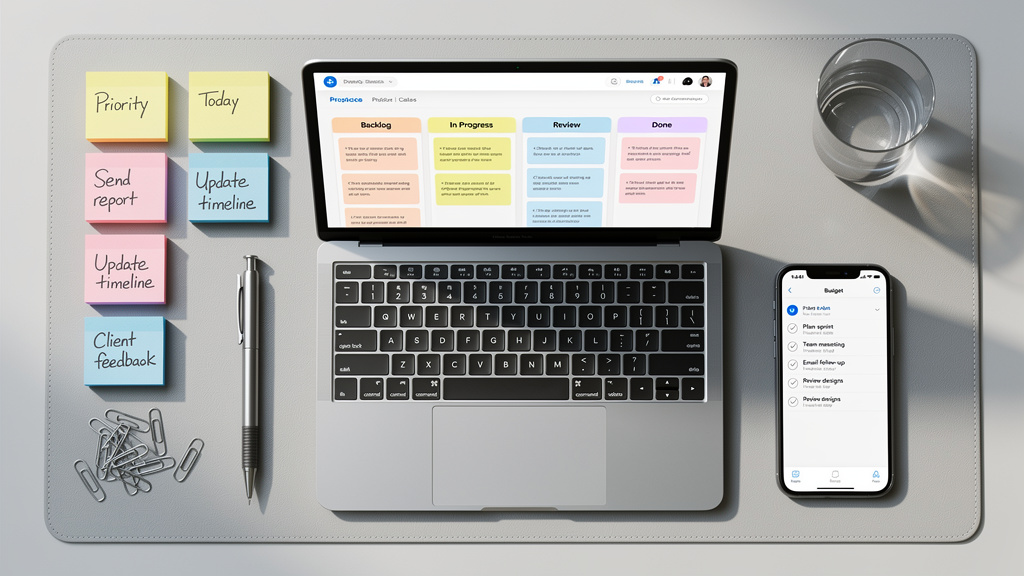
Scattered task lists are a hidden tax on any organization. One person keeps notes in email drafts, another in sticky notes, another in a project tool. Important follow‑ups fall through the cracks, and leaders get only a partial view of what is happening. Chrome productivity extensions that tie browsing to shared task systems can reduce this chaos.
The tools below help people capture work as they go, automate steps between apps, and keep tab overload under control.
Todoist for Chrome: Rapid Task Capture
The Todoist extension turns any web page into a potential task with a single click. While reading a report, checking a vendor site, or reviewing a customer ticket, a user can click the Todoist icon and save a reminder such as “Review this contract tomorrow” linked to that page. Natural language entry makes it fast to type dates and priorities in plain words.
Tasks sync in real time across phone, desktop, and browser, which means work captured in Chrome shows up everywhere else. Todoist also connects with calendars and email, so teams can see tasks next to meetings and messages. Because it uses little memory, this Chrome productivity extension fits well in larger stacks.
Zapier Chrome Extension: Workflow Automation
Zapier is known for connecting apps without code, and its Chrome extension brings that power directly into the browser. Each “Zap” is an automated workflow, such as:
- When I click this button, take the highlighted text and create a new CRM record.
- Send a Slack message.
- Log the lead in a Google Sheet.
The extension lets people run these Zaps from any page with just a few clicks. For example:
- A sales rep could send contact info from a website into the CRM and pipeline tracker without copying and pasting.
- A support lead could quickly create tasks from bug reports or feedback forms.
With more than 5,000 connected apps, this Chrome productivity extension can save hours of manual work each week. There is a learning curve, so it helps to start with a few high‑value use cases and provide basic training and guardrails for security and data access.
Tab Manager by Workona: Project-Based Tab Organization
Workona tackles the classic “50 tabs open” problem by grouping tabs into workspaces. Each workspace holds a set of tabs for a project, client, or role. Users can switch between workspaces instead of hunting through one long row of tiny tab icons.
The extension can also suspend unused tabs to free up memory, which keeps Chrome fast even in research‑heavy roles. Workspaces sync across devices, so a person can move from laptop to desktop without losing context. As part of a stack of Chrome productivity extensions, Workona brings order to daily browser chaos.
AI-Powered Chrome Extensions: Intelligent Assistance for Content and Research

Generative AI has moved from buzzword to everyday helper, especially for knowledge work, with specialized tools highlighted in guides like 12 Best AI Chrome extensions for developers and researchers. When AI is available right inside the browser, it shortens the path between a question and a clear answer, a rough idea and a solid draft. AI‑driven Chrome productivity extensions act as co‑pilots for research, writing, and analysis.
The tools in this section focus on three areas: smarter search, on‑page assistants, and automated documentation. Used well, they do not replace judgment; they give teams a faster starting point and help them cover more ground in the same amount of time.
ChatGPT for Google: Enhanced Search Intelligence
ChatGPT for Google adds an AI answer panel next to normal search results. When someone searches for a term, they see the usual list of links plus a ChatGPT response that summarizes key points or explains concepts in plain language. This is helpful for getting quick overviews before diving into detailed sources.
Teams can use this Chrome productivity extension for fast briefings, comparisons between options, or simple definitions during meetings. It is still important to cross‑check facts, especially for high‑stakes work, so treat AI output as a starting point, not final truth. Some versions and models may require a paid AI subscription, so IT should review cost and access before rollout.
MaxAI and Merlin: All-in-One AI Assistants
MaxAI and Merlin are browser‑wide AI helpers that work on almost any page. With a keyboard shortcut or a right‑click on selected text, users can ask them to summarize, translate, rewrite, or explain what they see. They can also draft replies to emails, social posts, and internal messages directly in the browser.
Both tools support multiple AI models, such as GPT‑4, Claude, and Gemini. That gives teams the freedom to pick the model that fits a given task or company policy. Common business uses include scanning competitor pages, summarizing long reports, and checking technical documentation. When leaders add these Chrome productivity extensions to a team stack, it helps to set clear rules:
- What types of data can be sent to AI.
- Which models are allowed.
- How people should review AI‑generated text before sharing.
Pricing and features differ between MaxAI and Merlin, so most companies pilot both and then pick one standard option.
Scribe: Automated Documentation Creation
Scribe takes the pain out of building how‑to guides. After installing the extension, a user clicks record, completes a task in the browser, and then stops recording. Scribe turns that click path into a step‑by‑step guide with screenshots and text descriptions for each action.
This Chrome productivity extension shines in onboarding, client training, and internal process documentation. Instead of spending hours writing and formatting instructions, a team can create a guide in minutes and share it with a link or export it to common formats. As with any recording tool, security teams should review what data may appear in screenshots and set clear rules for where guides can be stored and shared.
Additional AI Tools
A few focused Chrome productivity extensions bring AI to specific content types:
- YouTube Summary with ChatGPT generates a text summary and full transcript for many videos, which lets busy people scan key points in minutes instead of watching every second.
- Glasp Web Highlighter lets users mark up web pages and PDFs, then uses AI to turn those highlights into short summaries or flashcard‑style notes.
- Wordtune focuses on rewriting rather than raw generation. It suggests clearer, shorter, or more formal versions of sentences while people write emails, blog posts, or reports in the browser.
Together, these tools tighten the loop between information intake and output, so teams can learn faster and communicate more clearly.
Communication and Writing Enhancement Extensions

Written communication is the face of the organization in email, chat, and documents. Typos, unclear phrases, or uneven tone can send the wrong signal to clients and partners. At the same time, many roles involve typing the same explanations, intros, and updates again and again. This is where writing‑focused Chrome productivity extensions offer strong value.
Think of these tools as both quality checks and speed boosts. They help people sound clear and professional while also cutting down on repetitive typing.
Grammarly: Real-Time Writing Assistant
Grammarly scans almost any text box in the browser, from Gmail and Google Docs to LinkedIn and web apps. It flags spelling errors, grammar issues, and punctuation mistakes as people type. The free version covers most basic corrections, which alone can raise the baseline quality of daily communication.
Paid plans add deeper feedback on tone, clarity, and style. For example, Grammarly can suggest simpler wording, point out vague phrases, or nudge a message toward a more formal or more friendly voice. Business plans also include admin controls and analytics, so leaders can track adoption and spot common writing issues across teams. As with other Chrome productivity extensions that handle text, IT should review Grammarly’s data policies and decide which content types are safe to route through the tool.
Text Blaze: Smart Templates and Text Expansion
Text Blaze speeds up any role that repeats similar messages. Users create short commands, called snippets, that expand into full blocks of text when typed. A support agent might type “/refund” and insert a full refund policy email. A recruiter might use a snippet for a standard interview invite with fields for date and role.
Beyond simple text, Text Blaze supports variables, date formulas, and conditional sections. That means one snippet can adapt to many cases while still staying consistent with company standards. Teams can share snippet libraries so everyone uses the same wording for key messages. For a heavy email user, this Chrome productivity extension can remove thousands of keystrokes each month.
Hunter – Email Finder Extension
Hunter’s Chrome extension helps sales and partnership teams find email addresses linked to a given domain. With one click, it shows a list of contacts and often includes job titles and a confidence score. This makes it easier to identify the right person to contact at a target company.
Used well, this Chrome productivity extension supports structured outreach programs rather than random guessing. Teams should pair it with clear rules for respectful contact, opt‑out handling, and compliance with regulations such as CAN‑SPAM and GDPR.
Security, Performance, and Browser Optimization Extensions
No stack of Chrome productivity extensions is complete without attention to security and performance. If passwords are weak or the browser slows to a crawl, every gain from AI or task tools will be lost. IT managers often think about this layer first, and for good reason.
The extensions in this section protect logins, keep memory use in check, and help admins control what runs inside Chrome. They support everything else in this guide, because they keep the browser fast and safer while people work.
1Password: Enterprise Password Management
1Password is a password manager that fits well in both small teams and large companies. The extension stores logins, credit cards, and other secrets in an encrypted vault, then fills them in with a click when users visit known sites. It can also create long, random passwords so staff do not reuse the same weak phrase across many tools.
From a business view, this Chrome productivity extension reduces lockouts and password reset tickets. Shared vaults let teams share access to tools without sending passwords by email or chat. Business plans add admin dashboards, usage reports, and policy settings, such as required password strength or multi‑factor prompts. 1Password also monitors for known breaches and flags exposed credentials so companies can react fast.
The Marvellous Suspender: Memory Management
The Marvellous Suspender helps Chrome run smoothly when many tabs are open. After a set period of inactivity, it “suspends” a tab by unloading it from memory while leaving the tab in place. When a user clicks the tab again, the page reloads and work continues almost where it left off.
Settings let users pick how long tabs should stay active and which sites should never be suspended, such as dashboards or live chats. In tests, this type of Chrome productivity extension can cut RAM use by a large margin on heavy browsing days, which is especially helpful on older machines or thin laptops.
Extensity: Extension Management Dashboard
Extensity acts as a control panel for all other extensions. Instead of clicking through Chrome’s settings menu, users click one icon and see a full list of their installed tools. From there, they can turn any extension on or off with a single click.
This encourages better “extension hygiene,” where people keep only what they need active during a given task. Users can also create profiles, such as one for development work, one for writing, and one for meetings. Each profile turns on just the right mix of Chrome productivity extensions. For IT and security teams, Extensity makes it easier to review what is installed on shared machines and to coach staff on keeping their browser lean and responsive.
Document and Media Handling Extensions for Business Workflows
Handling documents, screenshots, and videos often pushes people out of the browser and into separate apps, despite collections like 30 Chrome Extensions for researchers demonstrating how browser-based tools can streamline these workflows. Every switch adds delay and mental overhead. Document‑focused Chrome productivity extensions bring more of that work into one place, which keeps people in flow and reduces friction in daily tasks.
The tools below cover PDF workflows, visual capture, and “read later” habits for articles and reports.
PDF Tools: Smallpdf and WPS PDF
Smallpdf and WPS PDF turn Chrome into a capable PDF workstation. Their extensions let users open, edit, convert, merge, split, compress, and sign PDFs without downloading files to separate desktop software. That is useful for contract reviews, form filling, and quick edits to proposals during a call.
Some plans add AI features to summarize long documents or let users search a contract in plain language, which is handy for spotting key clauses fast. Both tools offer free tiers with limits on file size or daily tasks and paid business plans with higher limits and more security options. IT teams should review how each handles file uploads, whether processing happens in the cloud or locally, and what controls exist for sensitive documents.
Screenshot and Screen Recording Tools
Visual context often explains a problem faster than text. Lightshot is a lightweight extension that lets users grab a selected area of the screen, draw arrows or notes, and share the image with a link or file. This is useful for bug reports, quick design feedback, or highlighting issues on a customer account page.
More full‑featured screen recording extensions can capture a browser tab or entire screen as video, along with narration. These tools support how‑to demos, client walkthroughs, and internal training clips. When adding these Chrome productivity extensions, companies should decide where recordings are stored, who can access them, and how long they should be kept, since screenshots and videos may include sensitive data.
Instapaper: Content Curation and Batching
Instapaper’s extension makes it simple to save articles and videos for later instead of reading them in the moment. With one click, content goes into a clean, ad‑free reading queue that syncs across devices and works offline on phones and tablets.
This supports a healthy read later habit. Staff can park non‑urgent reading during deep work blocks and catch up during planned learning time. Combined with note‑taking tools, this Chrome productivity extension helps teams collect and review relevant content in a more focused way.
Strategic Implementation: Building Your Productivity Extension Stack
Knowing which Chrome productivity extensions exist is only half the work. The real payoff comes when leaders turn that knowledge into a planned stack that supports company goals. That stack should fit how teams already work, not fight against it.
A good starting point is a simple workflow audit:
- Map how different teams use the browser during a normal week.
- Look for repeated manual tasks, constant context switching, or common complaints about slow tools or constant pings.
- Rank these issues by cost in time and impact so you can focus on the biggest wins first.
From there:
- Pick a small core stack of five to seven extensions that nearly everyone can use. For many organizations, this might include an ad blocker, a password manager, a focus tool, a writing assistant, and a basic PDF tool.
- Design role‑specific profiles.
- Sales might add Hunter and Text Blaze.
- Support might use Scribe and screen recorders.
- Developers might focus on tab managers and security tools.
- Roll out changes in phases. Start with a pilot group in each department, gather feedback, and fine‑tune settings and training materials. Tools like Scribe make it simple to capture how to install and use each Chrome productivity extension, so you can share clear guides with the wider team.
- Set governance rules. Decide who can request new extensions, how IT checks security and performance, and how often the company will review the stack. A quarterly review to check usage stats, remove stale tools, and consider new options keeps the setup fresh and manageable.
VibeAutomateAI can support this entire cycle with structured playbooks and extension comparison guides, so leaders are not starting from a blank page each time.
Conclusion
Chrome has become the main work surface for most knowledge workers, which makes Chrome productivity extensions a powerful way to multiply output. When chosen and managed well, they cut noise, automate low‑value steps, keep the browser fast, and raise the quality of everyday communication. For teams, that can add up to hours saved per person each week.
The key is to be intentional. Rather than installing every promising add‑on, leaders and IT managers can use the five‑pillar framework of utility, usability, performance, security, and cost to decide what earns a spot. The categories we have covered—focus, task management, AI helpers, writing, security, and document handling—give you the building blocks for a strong core stack.
From there, success depends on implementation. Start with a small set of high‑impact Chrome productivity extensions, create role‑based profiles, and support them with clear training and light governance. Review the stack regularly, retire what no longer adds value, and stay open to new tools that solve real, named problems.
Productivity is not a one‑time project. It is an ongoing process of testing, learning, and adjusting how work gets done. VibeAutomateAI exists to support that process, with deep, practical guides that help you connect tools to strategy. As browser‑based work continues to grow and new extensions appear, the organizations that treat their Chrome stack as a managed asset—not an afterthought—will move faster and execute better.
FAQs
Question 1: How Many Chrome Extensions Should I Install for Optimal Productivity?
There is no magic number, but more is not always better. Most professionals do well with five to ten carefully chosen Chrome productivity extensions that cover focus, security, writing, and core workflows. Each extra extension adds resource use and possible conflicts. Performance usually drops when people install dozens of tools they rarely use.
A smart approach is to keep only the extensions that support regular, high‑value tasks:
- Review your extension list monthly.
- Remove anything you have not used in the past few weeks.
- Use an extension manager like Extensity to turn tools on and off as needed.
Question 2: Are Chrome Extensions Safe for Business Use, Especially Regarding Data Security?
Chrome extensions can be safe for business use, but only when they are vetted with care. Each extension declares the permissions it needs, and IT teams should read these closely to see what data and sites it can access. Look for:
- Well‑known developers.
- Clear privacy policies.
- Many recent positive reviews.
- Active updates and a visible support channel.
Open‑source Chrome productivity extensions add another layer of comfort, because their code can be reviewed by the community. Larger organizations should run all new requests through an approval process with security input and keep a list of allowed tools. For very sensitive work, it may be wise to use a separate browser profile with only a few trusted extensions and strict rules on which data can be processed.
Question 3: Will Installing Multiple Extensions Slow Down My Chrome Browser?
Some extensions have little impact on performance, while others can slow things down. Each one runs code in the background and uses memory, so a long list of Chrome productivity extensions can add up over time. To see which tools are heavy, users can open Chrome’s Task Manager and check which extensions use the most resources.
Strategies that help keep Chrome responsive include:
- Using The Marvellous Suspender to reduce memory use.
- Turning off unused extensions with Extensity.
- Closing old tabs and running a smaller core set of tools.
On older machines with less RAM, keeping the active extension list short is especially important.
Question 4: What Is the Difference Between Free and Paid Versions of Productivity Extensions?
Most Chrome productivity extensions offer a free tier with core features and a paid tier with more advanced options. Free plans often limit usage, collaboration, or analytics, while paid plans add:
- Shared libraries or team workspaces.
- Admin controls and security settings.
- Deeper reports and better support.
For individual users, the free version may be enough to handle simple workflows. For teams, the math often changes, because even a small time saving per person can justify a modest per‑seat cost. Leaders should test free plans first, estimate the time saved, and then decide whether paid features such as team sharing or security controls are worth the extra spend.
Question 5: How Do I Get My Team to Actually Adopt and Use Productivity Extensions?
Adoption often matters more than tool choice. People are more likely to use Chrome productivity extensions when they see clear benefits in their own work. A few practical steps:
- Start by picking a few extensions that solve visible pain points and run a small pilot with motivated team members.
- Ask them to share examples of time saved or errors avoided.
- Capture simple “how to” guides with Scribe so setup steps are easy to follow.
- Provide direct install links and short walkthroughs during team meetings.
- Check in after a few weeks to gather feedback and adjust settings or training.
When leaders use the same tools and talk about how they rely on them, it sends a strong signal that these extensions are part of how the team works, not just optional extras.
Stay connected