Introduction
Remote access software went from a nice extra to a core part of IT almost overnight. When more than a quarter of US employees work fully remote and the remote desktop market is already worth 3.33 billion dollars, that change is hard to ignore, with research highlighting both challenges and benefits of remote and hybrid work models from employees’ perspectives. Every time someone connects into a desktop or server from home, a hotel, or a phone, remote access software is the invisible bridge that keeps work moving.
For IT teams, that bridge can feel risky. Pick the wrong remote access tool and there are slow connections, angry users, and real security gaps. Pick the right one and the team gains fast support, controlled access, and clear audit trails. The hard part is balancing strong protection with smooth performance, especially when the business expects both.
At VibeAutomateAI, we spend our time living in that tension. We test tools hands on, lean on cybersecurity best practices, and focus on how remote access software behaves in real environments, not just in marketing pages. In this guide we walk through how we tested each product, what matters most for security and performance, and which tools fit different use cases and budgets. By the end, it should be much easier to match a remote access platform to real-world needs and roll it out with confidence.
Key Takeaways
-
This guide shows how remote access software really behaves in practice. We focus on security, performance, and fit for different teams. The goal is to give clear direction, not theory.
-
We group tools by strength, including enterprise security, high performance, cost focused options, and free tools. This saves time during vendor shortlisting and helps match tools to real risks and budgets.
-
Every review uses a security first testing approach that checks encryption, access control, and audit trails. We treat remote access software as a sensitive entry point. That perspective shapes every rating we give.
-
VibeAutomateAI adds practical deployment and hardening tips next to each tool. We connect product features to real IT workflows. The aim is fast, safe rollouts without extra noise.
“Remote work is not a temporary exception; it’s a permanent part of how organizations operate.” — Adapted from Gartner remote work research
What Is Remote Access Software and Why IT Professionals Need It
Remote access software is a class of tools that let a user view and control a distant device as if they were sitting in front of it. A client app on one device connects securely to a host service on another device, and the remote desktop, mouse, and keyboard are streamed over the network. Good remote access tools also handle file transfer, clipboard sharing, and sometimes remote printing.
Under the hood, there is a client side application, a host side service, and one or more secure transport channels. These tools may use protocols such as RDP, or their own streaming engines, but the idea is the same: the local device sends input, the remote device sends back images and responses, and encryption keeps that traffic private.
It is important to separate remote access software from other access methods:
-
Terminal emulators offer command line access and are great for servers, but do not give a full graphical desktop.
-
A VPN builds an encrypted tunnel into a network so many services can be reached.
-
Remote access software connects into a specific machine and streams its desktop, often without exposing the whole network.
Many teams use more than one of these tools, but the goals are different.
The growth numbers show how central this has become, particularly as studies examine the intersection of digitalization and secure remote access technologies. The remote desktop market is expected to grow from 3.33 billion dollars in 2024 to nearly 12 billion by 2032, with a strong yearly growth rate. That rise tracks with remote work, cloud adoption, and the need for continuous access during incidents. At VibeAutomateAI, we see remote access software as a pillar for distributed workforces, faster IT operations, and better disaster recovery planning.
Critical Evaluation Criteria How We Tested and Ranked Remote Access Tools
Security Architecture and Compliance Standards
Security is the first filter we apply when we review any remote access software. We look closely at the encryption stack, checking for modern options such as AES 256 bit for data and TLS 1.2 or 1.3 for transport. We also test how keys are handled and whether there are any weak configuration options that a rushed admin might leave in place.
Strong authentication is just as important. During testing, we verify that multi factor authentication is easy to turn on everywhere, not only for admins. We also check support for single sign on and directory links so existing identity systems can control access. Our team maps these features against standards such as GDPR, HIPAA, SOC 2, and ISO 27001 where they apply.
Access control and visibility receive the same level of attention. We review whether an admin can:
-
Set view only sessions
-
Limit file transfer
-
Restrict access by device group or role
We spend time with audit logs and session recording, checking how easy it is to trace who did what and when. All of this lines up with the VibeAutomateAI cybersecurity practice, which treats remote access software as part of the core attack surface.
NIST guidance stresses that remote access should be “monitored, logged, and controlled” as carefully as on-site access. Treat it like a front door, not a side entrance.
Performance Benchmarking and Connection Reliability
Performance testing focuses on how remote access tools behave under real network pressure. We run sessions on:
-
Fast wired links
-
Crowded office Wi Fi
-
Low bandwidth cellular networks
During each run we track latency, frame rate, and how usable the desktop feels when moving windows, typing, or scrolling through logs, considering statistical software usability factors that impact user experience.
We then check the streaming engine and compression behavior. Some tools adapt image quality to keep the session responsive when bandwidth dips, and we mark that as a clear plus. We also test auto reconnect features and whether sessions survive short drops without user action. Multi monitor handling and 4K display support go into the score for power users.
On the resource side, we watch CPU, memory, and bandwidth use on both client and host. Remote access tools that perform well but peg CPUs or eat bandwidth can become a problem at scale. Our scoring favors tools that stay fast while keeping resource use reasonable.
Enterprise Scalability and Integration Capabilities
For larger environments, we treat remote access software like any other core platform that must tie into existing systems. We start by checking directory links for Active Directory or LDAP so user accounts and groups do not have to be managed in yet another place. A clean, central admin console is also key, since IT teams need a single view of devices, sessions, and policies.
API coverage is another major factor. We test whether a tool can connect with ticketing platforms or IT service tools so remote sessions can launch from inside existing workflows. We also look at deployment options, including cloud based, on premises, and mixed models, since many enterprises still have strict data location rules.
License handling and concurrent session control are part of the same picture. During testing, we pay attention to how easy it is to assign seats, track use, and avoid surprise limits. These checks match the workflow optimization focus at VibeAutomateAI, where remote access software has to fit into the bigger IT management playbook, not sit off on its own.
Top Remote Access Software for Enterprise Security and Compliance
BeyondTrust Remote Support Military Grade Security for Enterprise IT
BeyondTrust Remote Support is the security heavyweight in this group. During testing we saw strong encryption, enforced multi factor authentication, detailed audit logs, and session recording that gave a full picture of admin activity. Every remote access session leaves a trail, which matters a lot in regulated settings.
One standout feature is the Jump Client model. IT teams can pre install a small agent on managed machines and then reach them later without user action, while still keeping strict control over who can start a session and under what rules. BeyondTrust also ties into privileged access management platforms, so high value accounts and remote access to sensitive systems can be controlled through a single policy layer.
The tool comes with a central dashboard where teams can group devices, assign technicians, and review recent activity. Reporting options help prepare for audits and show that the tool is configured in a safe way. A common pattern we see is a financial services IT group using BeyondTrust to manage servers in card processing zones, where PCI DSS pressure is high.
There are trade offs. The interface feels dated compared with newer tools, and the full feature set can be overwhelming for small teams. Pricing clearly targets enterprises, not small shops, but for organizations where fines and data loss are far more costly than licenses, the math works. We suggest planning for a structured rollout with clear training, since admins need time to learn the policies and reporting modules.
Best fit cases include:
-
Large enterprises
-
Healthcare providers
-
Financial firms
-
Any team that treats remote access as a regulated control point rather than a simple support tool
Remote Desktop Services RDS Native Windows Enterprise Product
Remote Desktop Services (RDS) builds on the Windows Remote Desktop Protocol and is deeply woven into Microsoft server and desktop products. For Windows heavy shops, this tight link is the main appeal. Users can reach whole desktops or individual published apps while admins keep everything inside known Windows server roles.
From a security view, RDS sessions can use Network Level Authentication along with TLS encryption, which gives a solid base when paired with good password and MFA policies. Azure Active Directory support helps when an organization is pushing toward hybrid cloud models, since identity can sit in one place while sessions terminate on on premises hosts.
RemoteApp is another important feature. Instead of handing over a full desktop, admins can publish just the line of business app a user needs. That reduces risk and keeps the user experience focused. In our tests we walked through typical builds using Session Host pools, connection brokers, and Remote Desktop Gateway components to support internet facing access.
The price for this power is complexity. Setting up RDS in a safe way demands good knowledge of Windows Server, licensing rules, firewall design, and certificate handling. Misconfigured ports or weak gateway rules can open doors that are hard to see later. We often see mid sized enterprises use VibeAutomateAI style guidance to map out RDS projects, especially when moving to a hybrid design.
RDS is best for Windows centric organizations that already run Microsoft servers and have the skills to manage them. For these teams, RDS offers secure, high scale remote access without adding a new vendor, though it does require real planning and ongoing care.
Best Remote Access Software for Performance and User Experience
AnyDesk Lightweight Powerhouse With Superior Speed
AnyDesk is often the first name mentioned when people talk about fast remote access. Its DeskRT codec is tuned for low latency and smart compression, which we could feel right away when moving windows, scrolling code, or working inside design tools. Even on slower links, sessions stayed responsive enough for real work.
The installer is tiny, under three megabytes, and there is a portable mode that runs without full installation. That makes it easy for IT staff to launch a quick session on a user machine without heavy prep. In low bandwidth tests, AnyDesk lowered image quality before it allowed the session to stall, which kept keyboard and mouse input feeling snappy.
Security is not an afterthought. AnyDesk supports TLS 1.2 for transport, strong encryption for session data, and two factor authentication. We still recommend pairing it with sound account policies and careful address books so only approved devices can connect. A common use case we see is a design team reaching office workstations from home to run graphics tools that would overwhelm laptops.
We did notice a few pain points. File transfer and clipboard sync had rare hiccups, and the tabbed interface felt cramped when many sessions were open. Pricing is free for personal use, with paid business tiers that stay reasonable for most teams. We suggest tuning settings based on use case, such as lowering image quality for support work or raising it for design sessions. AnyDesk is a strong choice when performance across mixed networks is the primary concern.
Splashtop Remote Access Premium Streaming for Resource Intensive Tasks
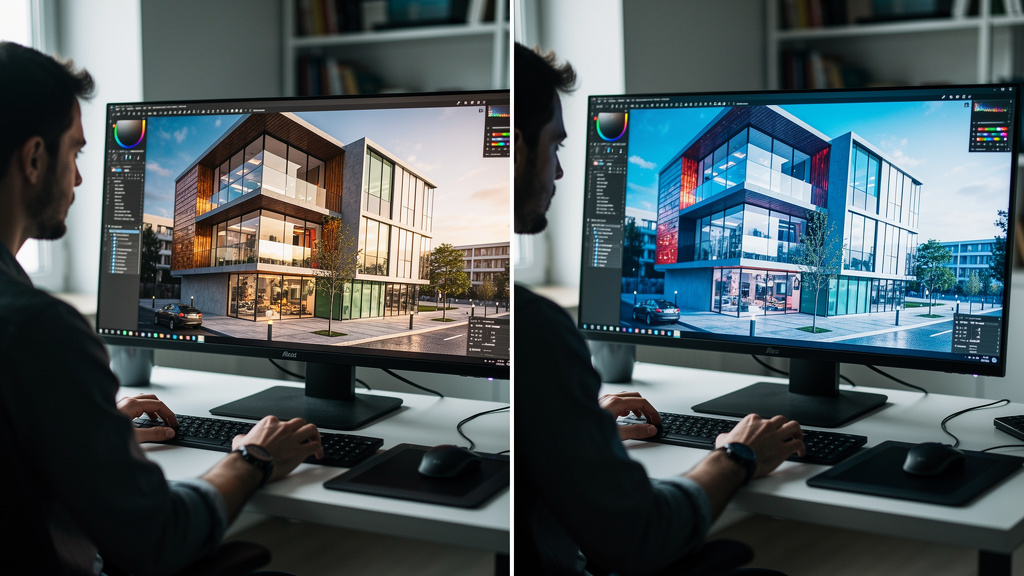
Splashtop Remote Access stands out when visual quality is the main demand. During testing, we pushed 4K displays at up to forty frames per second and saw smooth motion with very low lag. That makes this remote access software a favorite for CAD users, video editors, and anyone working with 3D models.
The platform supports Windows, macOS, Linux, and major mobile systems, and the mobile apps held up well in our tests. Controls felt natural on tablets, which matters when engineers or creators need to check work from the field. Security relies on TLS with 256 bit AES for session data, which meets expectations for most business environments when combined with good account policies.
A typical scenario involves an engineering team who cannot move heavy workstations out of the office. With Splashtop in place, they can work from home or another site and still drive those machines as if they were on site. In our hands, color fidelity and motion stayed stable enough for timeline edits and fine design work.
The main headaches show up during setup in trickier network layouts. Complex firewalls or locked down proxies can slow initial deployment, and some admins will want to work through a small proof of concept before full rollout. Pricing lands on the friendly side for the level of performance you get, which is why we rate it highly in our VibeAutomateAI productivity focused reviews. Splashtop is best for creative and technical users who care more about smooth visuals than about deep admin collaboration features.
Most Cost Effective Remote Access Tools for IT Teams

Zoho Assist Feature Rich Remote Support at Budget Friendly Pricing
Zoho Assist delivers a wide feature set at a price that suits small and mid sized IT teams. In testing, we used file transfer, session recording, clipboard sharing, and multi monitor viewing without bumping into hard limits. These features place it above many tools in the same price band.
A clear plus for many businesses is how well Zoho Assist sits next to other Zoho products. If the support desk already runs on Zoho, it is simple to open remote sessions from tickets and keep records tied together. The free tier covers light use, while paid plans add power user functions such as unattended access and more technician seats.
We found it a strong match for a small business IT group managing around fifty to one hundred endpoints. Setup is quick, and most technicians can get comfortable in a short training session. On the flip side, permission controls are not as fine grained as in high end enterprise tools, and the interface looks dated in places.
The mobile apps handle core support tasks but feel less complete than the desktop experience. For many teams, that is an acceptable trade for the lower cost. We see Zoho Assist as a go to pick when a team needs capable remote support software, wants clean ties into Zoho platforms, and has to watch spending closely.
RemotePC Excellent Value With Always On Access
RemotePC focuses on simple, reliable remote access with strong value for the price. One key feature is its Always ON mode, where admins can set up unattended access to servers and desktops so maintenance and checks can happen without a user present. During testing, we used this often for after hours patching and quick server reviews.
Setup is direct, and cross platform support covers major desktop and mobile systems. File transfers work through a clear file manager style interface, which made it easy to move logs, installers, and reports between machines. For everyday admin and light support tasks, performance stayed smooth.
We did see occasional slowdowns when stressing graphics or heavy workloads. A few macOS specific bugs were also present, such as brief black screens or issues leaving full screen mode, though they did not stop work. Pricing stayed very competitive compared with other paid remote access options, especially when managing many machines.
A common use case is an IT administrator responsible for a mix of workstations and servers spread across small sites. With RemotePC in place, they can keep an eye on things without constant travel. We recommend spending time tuning Always ON policies, including strong passwords and added protection, so that unattended access does not become a weak point.
Best Free Remote Access Software for Personal and Limited Commercial Use
Chrome Remote Desktop Simple Secure and Completely Free
Chrome Remote Desktop is Google’s free, browser based remote access tool. It runs inside Chrome using web technologies and does not require heavy client installs, which makes it simple to use from nearly any device with the browser. In our tests, setup took only a few minutes.
There are two main use patterns:
-
Personal access, where someone sets up their own machines for long term reach from anywhere
-
One time screen sharing for quick support sessions
Both rely on Google’s back end and encryption stack, which gives a solid security base for personal and light business tasks.
The trade off is features. There is no built in session logging, remote printing, or advanced user management, and control over access rules is limited. For many IT professionals, that is acceptable when the goal is reaching a home lab or helping family with a quick fix at no cost. We do not recommend using it as the primary remote access platform for a whole company, but it is hard to beat for simple, free access.
TeamViewer Free Powerful Features With Usage Limitations
TeamViewer is one of the best known names in remote access software, and its free tier is powerful for personal use. Users get full remote control, file transfer, and cross platform support across Windows, macOS, Linux, and mobile devices. During testing, sessions were stable and easy to start, even for less technical users.
Security is strong, with RSA 4096 bit key exchange and AES 256 bit encryption used for sessions. The same base is present in the free and paid editions, which means personal users do not get a weaker stack. However, the free license is meant only for private, non business tasks.
TeamViewer tries to detect commercial use based on patterns such as frequent or long sessions and connections to many different devices. When the system flags an account, sessions become limited until a paid license is added. Trying to avoid this by hiding usage goes against terms and can lead to account issues.
For IT professionals, the free tier works well as a learning tool before rolling out paid TeamViewer in a company, or as a way to help friends and relatives. For any business activity, we advise moving to the right paid plan early rather than risking blocked access during a busy day.
Platform Specific Considerations Choosing Software for Your IT Environment
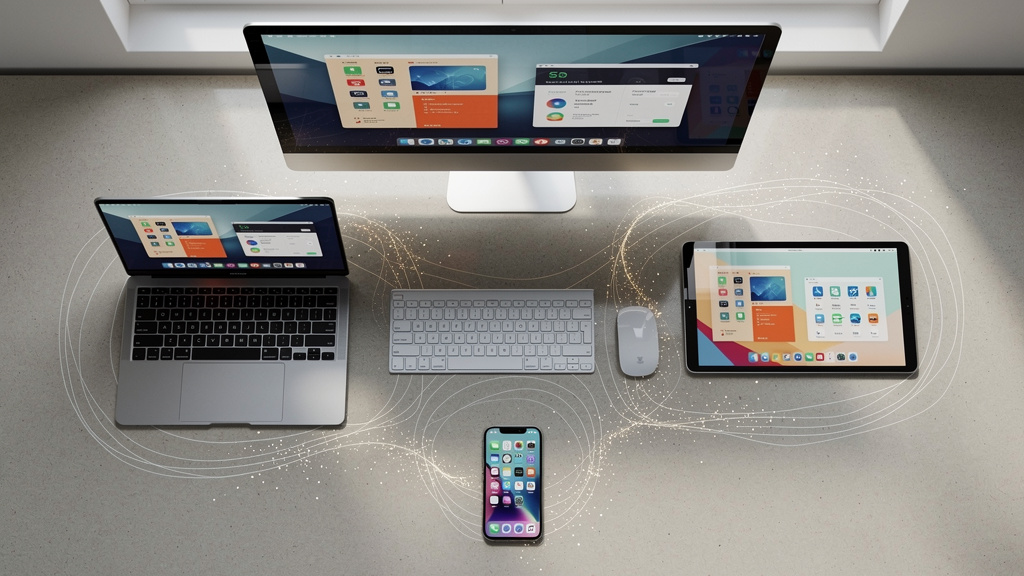
When choosing remote access software, platform support is more than a line item. Windows focused environments may prefer native tools such as RDP and Remote Desktop Services because they tie closely into Group Policy, Active Directory, and existing admin skills. These tools can be very effective when hardened and monitored, but they demand careful setup.
Apple heavy shops need to look at macOS Screen Sharing and how third party tools handle Apple Silicon, display scaling, and permission prompts. Not every product treats macOS as a first class platform, so testing is important. Linux adds another layer, since some tools provide only viewer apps while others support full remote access on Linux servers and desktops, including both graphical and command line options.
Mobile platforms bring their own questions. For iOS and Android, it is important to check how easy it is to control a desktop from a small screen and whether mobile device support sessions are possible. ChromeOS and browser oriented devices tend to work best with tools that offer web clients, since installing full native apps may not be possible.
Many organizations run a mix of platforms, which shifts the focus to cross platform support and consistent user experience, including secure remote access solutions that centralize access management across different systems. In our VibeAutomateAI work, we advise building a small matrix that lists operating systems, key workflows, and remote access needs. Then we test short listed products across that full matrix before any wide rollout. This approach avoids surprises later, such as a product that works well on Windows but feels awkward or limited on macOS or mobile.
Security Best Practices for Remote Access Implementation

No matter which remote access platform a team picks, security practices make the difference between a safe tool and a risky backdoor. Some key practices we stress with clients include:
-
Use strong authentication: Long, complex passwords plus multi factor authentication should be standard for every account with remote access rights. App based codes or hardware keys are safer than text messages.
-
Limit where sessions can start: IP based rules and geo controls reduce the chance of attacks from unexpected locations, especially for admin accounts.
-
Apply idle timeouts: Idle session timeouts stop abandoned connections from turning into easy entry points.
-
Turn on logging and, where needed, recording: Logs should capture who connected, from where, and what they did. Session recording is helpful for high risk admin access.
-
Keep software up to date: A simple patch cycle for remote access clients and hosts closes known holes before they are widely abused.
-
Use least privilege: Give each user only the rights needed, not full desktop and file access by default. View only modes and limited file transfer should be used when possible.
-
Segment the network: Place remote access hosts in separate network segments and pair them with endpoint detection and response tools on servers and admin machines to limit blast radius.
-
Review regularly: Run audits and focused penetration tests around remote access paths to catch gaps early.
“Security is a process, not a product.” — Bruce Schneier
Remote access tools can be safe, but only if teams keep treating them as part of that ongoing process.
At VibeAutomateAI, we frame these steps as a standard checklist that teams follow before and after deployment so security remains a living practice, not a one time project.
How to Implement Remote Access Software Step by Step Deployment Guide
Rolling out remote access software works best when it follows clear phases. At VibeAutomateAI, we structure projects in the following order and provide templates and runbooks so teams can manage each step consistently:
-
Requirements Assessment
In this stage we define use cases, such as support, admin access, or user desktops, count likely users, and list platforms in play. We also map security needs, including compliance lines and data sensitivity. Clear scope at this point prevents tool sprawl later. -
Vendor Review and Proof of Concept Testing
Instead of judging tools only from documents, we spin up trials and run live workflows through them. Support staff use the tools to fix test machines, admins reach lab servers, and a few users try remote workdays. We watch both technical behavior and user feedback to see where friction appears. -
Infrastructure Preparation
During this step we update firewall rules, confirm name resolution, and check that endpoints meet any agent or operating system requirements, including remote access configurations for document management and file systems. Clear diagrams help here, since they show where remote traffic enters and which systems it can touch. We also plan identity links so authentication lines up with current user stores. -
Pilot Rollout
We select a small but varied group of users and devices, then run the remote access software with them for a defined period. During that time we record issues, collect ideas, and refine standard operating procedures. This period is the best time to make changes before the tool reaches the wider company. -
Security Hardening
Once the pilot looks stable, we focus on security. We turn on multi factor authentication everywhere, confirm logging and recording, tune access policies, and double check network segments. At this point we also verify that admin accounts follow least privilege. -
Documentation and Training
Documentation follows, with user guides, admin runbooks, and troubleshooting tips stored in a central place. Clear docs cut down on support tickets during wider rollout. Short training sessions, backed by these materials, help users avoid common mistakes such as sharing codes or leaving sessions open. -
Full Deployment and Ongoing Care
The final phases cover broad rollout and long term operations. We roll out in waves, keep support staff ready, and watch for performance or adoption problems. After that, the work shifts to monitoring, updates, and periodic reviews. VibeAutomateAI often turns this full process into a repeatable checklist so future tools or expansions follow the same calm, predictable pattern.
Conclusion
Remote access software is now a standard part of modern IT, but there is no single best product for every environment. Each tool in this guide shines in different ways. BeyondTrust Remote Support and Remote Desktop Services lead when tight security and compliance pressure set the rules. AnyDesk and Splashtop stand out when fast, smooth sessions matter most, especially for creative and technical work. Zoho Assist and RemotePC give strong value to teams that need control but watch budgets, while Chrome Remote Desktop and TeamViewer free serve personal and learning needs.
Across all of these choices, one theme stays constant: security has to come first, with strong identity controls, clear access rules, careful logging, and well planned network design. The best remote access platform will still become a risk if it is deployed with weak passwords, wide open rights, and little monitoring.
We recommend that every IT team run structured tests, follow the deployment phases we outlined, and train users on both features and social engineering risks. Remote access is not just another utility. It is part of the security edge of the company and deserves regular review.
At VibeAutomateAI, we keep tracking new tools, attack methods, and best practices so our guides stay practical and current. The next steps can include building your own shortlist from these reviews, running a focused proof of concept, and using our broader cybersecurity resources to shape your policies. Threats and platforms will change, but with thoughtful testing and strong security habits, remote access software can stay an asset rather than a liability.
FAQs
What Is the Most Secure Remote Access Software for Enterprise Use
For large enterprises, we see BeyondTrust Remote Support and Remote Desktop Services as top choices from a security view. Both offer strong encryption, detailed logs, and support for multi factor authentication. BeyondTrust adds deep ties to privileged access tools, while RDS gains from tight Windows integration. That said, true safety depends on how well teams configure and monitor these tools. All products we rated for enterprise use can be safe when paired with sound policies.
Can Remote Access Software Work Effectively on Low Bandwidth Connections
Yes, many remote access platforms run well on links with limited bandwidth, as long as the workload is not too heavy. AnyDesk is a clear leader here, thanks to its DeskRT codec, which adjusts quality to keep sessions responsive. Adaptive streaming is common in better tools and keeps typing and pointer movement smooth. For graphics heavy apps, some lag is likely, so we always advise testing your exact workflows during trials.
How Do I Prevent Commercial Use Detection in TeamViewer Free Version
There is no safe way to do this, and trying is not wise. TeamViewer Free is meant only for personal, non business activity. The company looks for patterns that suggest work use, such as many devices, frequent sessions, or long up times. When those show up, the account may be flagged and restricted. If there is any business value in your use, the right path is to choose a paid plan instead of trying to avoid detection.
What Is the Difference Between Remote Access Software and VPN
A VPN creates an encrypted tunnel into a network so a device can reach file shares, internal websites, and other network services. Remote access software focuses on controlling a specific desktop or server and streaming its screen and input. In practice, people turn to VPNs when they need network reach and to remote access tools when they need to drive a full desktop. Many organizations combine both, using a VPN for general access and remote access software for admin work or full desktop tasks.
Should IT Departments Allow Personal Remote Access Software on Corporate Devices
We strongly advise against allowing unapproved remote access tools on company hardware. Personal tools can open doors for data theft, malware, or simple mistakes that break compliance rules. They also add to shadow IT, where admins cannot see or manage all access paths. Instead, IT teams should offer one or more approved remote access platforms, manage them centrally, and set clear acceptable use policies. Endpoint management tools can help by spotting and blocking unapproved installs, which lines up with the wider VibeAutomateAI focus on disciplined, security first operations.
Read more about AI Governance Framework: Everything You Need to Know
[…] Read more about Best Remote Access Software for Secure, Fast IT Support […]