

Introduction to Multi-Factor Authentication Setup
Picture this. An admin checks email over coffee, clicks one bad link, and their password lands in an attacker’s script. That script can try passwords all day, across dozens of services. Now compare that with a sign-in that needs both a password and a second check on a phone. The script stops cold. That is the power of a smart multi-factor authentication setup.
Microsoft reports that MFA blocks about 99.9% of automated account attacks. Yet many teams still avoid it because they expect a long project, user pushback, and confusing settings across cloud tools. Password policies get rolled out, but multi-factor authentication setup keeps getting pushed to “next quarter.”
Our aim with this guide is simple: show how you can get enterprise-grade protection in about five minutes, starting with Microsoft 365, using what you already own. No heavy project, no new product purchase, and no need to rip out existing identity tools.
In this article, you will learn:
- What MFA is and why it works so well.
- Which verification methods are worth using first.
- How to enable MFA in minutes with Security Defaults or Conditional Access.
- What end users see during enrollment.
- How to handle legacy apps and start moving toward passwordless access.
At VibeAutomateAI, we work on this bridge between theory and real-world rollouts, so the steps here reflect what works for busy IT and business teams.
key Takeaways for Multi-Factor Authentication Setup
- A focused multi-factor authentication setup on Microsoft 365 can be completed in about five minutes and blocks nearly all automated account attacks that depend on stolen passwords.
- MFA uses multiple factor types such as a password, a phone, or biometric data; the Microsoft Authenticator app offers a strong balance of security and ease of use.
- Administrators can start fast with Security Defaults or move to Conditional Access for more advanced, role-based policies, while keeping emergency accounts outside MFA to avoid lockouts.
- VibeAutomateAI helps teams plan, roll out, and refine MFA programs, including handling legacy apps, moving away from SMS codes, and shifting high-risk accounts toward phishing-resistant hardware keys and passwordless sign-ins.
Microsoft has stated that multi-factor authentication can block over 99.9% of account compromise attacks, making it one of the highest-value controls you can turn on.
What Is Multi-Factor Authentication Setup and Why Does It Matter?
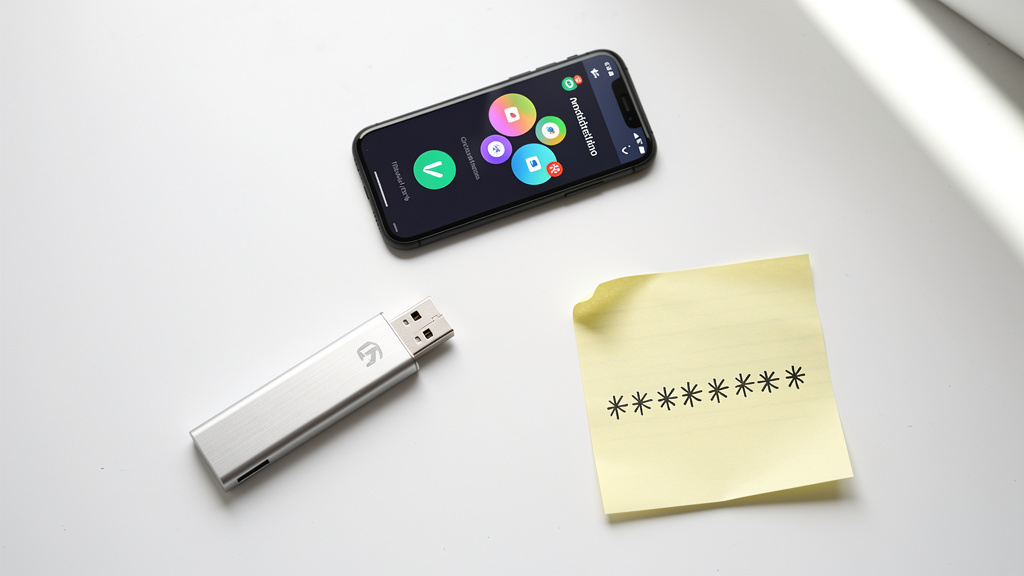
Multi-Factor Authentication (MFA), often called two-factor authentication, means a sign-in needs more than just a password—understanding how MFA works is essential for implementing effective security controls. Instead of trusting a single secret, it adds at least one more proof that the person is really who they claim to be. In simple terms, a good multi-factor authentication setup adds a second door with a different kind of lock.
Those “locks” fall into three factor types:
- Knowledge factor – something you know, such as a password or PIN.
- Possession factor – something you have, such as a phone with an authenticator app or a hardware security key.
- Inherence factor – something you are, such as a fingerprint or face scan.
MFA combines at least two of these, so a stolen password by itself is not enough to open the account.
A typical MFA sign-in works like this:
- The user enters a username and password.
- If those are correct, the system asks for a second check (push notification, app code, SMS code, or hardware key).
- Only after both checks pass does the session start.
This extra step blocks common attacks that rely on password reuse, phishing, and brute-force guessing. From a business view, MFA supports compliance requirements, reduces account takeovers, and reassures customers and partners that access to sensitive data is tightly controlled.
At VibeAutomateAI, we treat MFA as a core part of an access strategy, not just a checkbox, and we stay vendor-neutral so we can help teams choose the right mix of factors, tools, and policies.
Choosing Your Multi-Factor Authentication Setup Method
Before turning MFA on for everyone, it helps to pick the right verification method for your users and your risk level—research on multi-factor authentication systems shows that method selection significantly impacts both security and user adoption. Not all MFA factors are equal; some are more resistant to phishing, SIM attacks, and social engineering.
Microsoft Authenticator App (Most Recommended)

The Microsoft Authenticator app is our top pick for most organizations. It runs on a mobile device and approves a sign-in with either:
- A one-time code, or
- A push notification that the user taps to approve.
From the user’s view, it feels like a quick tap on a trusted device, which fits neatly into a fast multi-factor authentication setup without adding much friction.
Key benefits:
- Works even with no phone signal using time-based one-time passwords (TOTP).
- Avoids SIM-swapping risk because approvals stay inside the app instead of SMS.
- Can show sign-in details (location, app, time) so users spot suspicious prompts.
- Supports multiple work, school, and personal accounts on one device.
The experience is simple: users see a notification, check the details, and tap Approve or type a short number shown on the screen. At VibeAutomateAI, we usually recommend rolling this out as the primary method, then adding stronger options (like hardware keys) for sensitive roles such as admins and finance.
SMS Text Message Verification
SMS MFA sends a short numeric code by text message and asks the user to type it during sign-in. It is familiar to almost everyone, so it is often a starting point for small teams or users who resist installing an app.
Valid uses include:
- Temporary or short-term accounts.
- Field staff with basic phones.
- Backup when a smartphone battery dies.
However, SMS has known weaknesses:
- Attackers can hijack numbers via SIM-swapping or social tricks at carriers.
- Text messages can sometimes be intercepted or redirected.
Because of these gaps, SMS is better than no MFA, but not where you want to stay long term. We often keep SMS as a backup factor during early rollouts, while the Microsoft Authenticator app becomes the main method as users gain comfort.
Multi-Factor Authentication Setup: Hardware Security Keys (Advanced)

Hardware security keys (FIDO2, WebAuthn) push security further. These small USB or NFC devices store cryptographic secrets and prove identity by signing a challenge when a user taps or inserts the key. Phishing pages cannot easily steal these secrets, because the key checks the site origin before responding.
They are ideal for:
- Administrators and privileged roles.
- Finance staff handling large payments.
- Executives and regulated-industry roles.
Hardware keys pair well with passwordless sign-ins, where the user taps a key (and maybe adds a fingerprint) instead of typing a password at all. At VibeAutomateAI, we often recommend hardware keys as a second phase once a basic multi-factor authentication setup is in place.
You do need to plan for:
- Purchasing keys and spares.
- Training users to register and carry them.
- Handling lost or broken keys with backup methods.
For high-impact accounts, that effort is well worth it.
Multi-Factor Authentication Setup: 5-Minute Guide to Enabling MFA in Microsoft 365

For many teams, Microsoft 365 is the heart of email, documents, and identity, which makes it the perfect place to start a fast multi-factor authentication setup.
You have two main options:
- Security Defaults – quick, broad protection, good for smaller environments.
- Conditional Access – more granular control for organizations with Entra ID P1/P2.
Before you start, make sure you have a Global Administrator, Security Administrator, or Conditional Access Administrator role in Microsoft Entra, and send a short message to users so they know extra steps are coming.
As security expert Bruce Schneier often says, “Security is a process, not a product.” MFA in Microsoft 365 is a key part of that process.
Quick Start: Enable Security Defaults (3 Minutes)
Security Defaults are Microsoft’s prebuilt rules that turn on MFA and block older, risky sign-in methods. They are:
- Included with all Microsoft 365 plans.
- Already on for tenants created after October 2019.
When Security Defaults are on:
- All users must register for MFA.
- Admins are asked for MFA every time they sign in.
- Legacy protocols such as basic POP and IMAP are blocked.
To enable them:
- Sign in to the Microsoft Entra admin center at
https://entra.microsoft.com. - Go to Identity → Overview → Properties.
- Scroll to Security defaults and select Manage security defaults.
- Set to Enabled and save.
If you already use Conditional Access, the portal will say that Security Defaults cannot be used at the same time.
Advanced Setup: Conditional Access Policies (4–5 Minutes Initial Setup)
Conditional Access gives you far more control over when and how MFA is required. It looks at signals such as:
- User role or group.
- Device compliance.
- Location and sign-in risk.
This feature needs Microsoft Entra ID P1 or P2, included in plans like Microsoft 365 Business Premium, E3, and E5.
Basic steps:
- Turn off Security Defaults (if active) in Identity → Properties → Security defaults → Disabled.
- Go to Conditional Access → Policies → New policy from template.
- On the Secure foundation tab, create at least these policies:
- Require MFA for all users.
- Require stronger MFA for administrators.
- Block legacy authentication.
- Require MFA for Azure management.
- Review each policy and set Enable policy = On.
Then, create emergency access (break-glass) accounts:
- Create at least two dedicated admin accounts used only for emergencies.
- In each MFA policy, go to Assignments → Users → Exclude and exclude only these accounts.
- Monitor these accounts closely so any unexpected use raises alerts.
From there, you can add custom policies, such as stronger rules for finance apps or extra checks outside the corporate network. VibeAutomateAI often helps design these rules so they stay clear, avoid overlap, and use risk signals effectively.
Setting Up MFA As An End User (2 Minutes)
Once admins switch MFA on, each user needs to complete a short one-time enrollment. This usually takes just a couple of minutes and makes daily sign-ins much safer.
The steps below assume that Microsoft Authenticator is the main method.
Step-By-Step First-Time MFA Registration
- Sign in as usual to Microsoft 365 with your work or school email address and password.
- When you see “More information required,” click Next to start the setup wizard.
- On your phone, install Microsoft Authenticator from the iOS App Store or Google Play (check that it is the official Microsoft app).
- On your computer, the wizard shows a QR code. In the app, choose Add account → Work or school account and scan the QR code.
- Your account appears in the app. Microsoft sends a test notification to your phone.
- Open the notification, verify the sign-in details, and tap Approve. The wizard confirms completion.
From now on, sign-ins may prompt for:
- A push notification,
- A one-time code from the app, or
- Another method, depending on your company’s policy.
Users should also:
- Add at least one backup method (such as another phone number or alternate app).
- Contact IT quickly if a phone is lost so MFA methods can be reset.
VibeAutomateAI often provides screenshot guides and short videos that mirror these steps to reduce confusion and help desk calls.
Multi-Factor Authentication Setup: Handling Legacy Applications with App Passwords
Some older apps do not support modern authentication and cannot show an MFA prompt. When a multi-factor authentication setup meets one of these apps, sign-ins can fail even with correct credentials. App passwords are a short-term bridge for this situation.
An app password is a long, randomly generated string created in the user’s security settings and used by one legacy app at a time.
Typical process:
- The user signs in to their Microsoft account security page.
- Goes to Security info → Add sign-in method → App password.
- Generates the password and pastes it into the legacy app instead of the normal password.
From then on, that app uses the special password without MFA prompts, while modern apps continue to use the standard account with MFA.
Good practices:
- Use one app password per application, so it is clear what to revoke.
- Delete the app password when the legacy app is retired or updated.
- Aim to replace or upgrade these apps over time.
Security-wise, app passwords are not ideal because they keep older protocols alive. The best path is to move to clients and tools that support modern authentication and then use policies such as Block legacy authentication. VibeAutomateAI frequently helps organizations inventory these legacy dependencies and plan a gradual phase-out.
Multi-Factor Authentication Setup: How VibeAutomateAI Optimizes Your MFA Program
Turning MFA on is a strong start, but real value appears when policies, training, integrations, and monitoring all work together. That is where VibeAutomateAI focuses. We do not sell MFA products; we guide organizations through planning, rollout, and long-term tuning so a multi-factor authentication setup stays effective as the business changes.
We typically help in three areas:
- Platform fit and strategy
Many teams already have access to tools through Microsoft 365, Okta, Google Workspace, or other providers but are unsure how far those tools can go. We use checklists and scoring sheets to compare them against needs such as integration depth, reporting, risk signals, and admin overhead. - Adaptive, role-based policies
Using features like Conditional Access and risk-based sign-in, we design policies so high-risk roles see stronger checks, while everyday users get a fast experience on healthy, known devices. We document rules in plain language with diagrams so admins can maintain them without guesswork. - Stronger methods and compliance alignment
We guide staged moves to phishing-resistant and passwordless methods: starting admin and finance accounts on hardware keys, expanding app-based MFA to broader groups, then planning toward passkeys or device-based biometrics. Along the way, we support audits and regulations such as PCI DSS, HIPAA, SOC 2, GDPR, and CMMC, using logging and reporting to show that access is under control.
Our approach uses AI and machine learning where available to spot risky behavior, raise extra challenges only when needed, and avoid alert fatigue for both users and administrators.
Conclusion
A well-planned multi-factor authentication setup is one of the fastest ways to raise your security level. In about five minutes on Microsoft 365, an administrator can move from password-only access to a sign-in flow that stops most automated attacks that depend on stolen or guessed passwords.
There are two main paths:
- Security Defaults – a quick, broad shield that fits many small and mid-sized organizations.
- Conditional Access – more effort to design, but with detailed, role-based control and support for advanced methods like phishing-resistant hardware keys.
Across both options, the Microsoft Authenticator app is our recommended default factor because it offers strong security and a quick, app-based approval for users.
MFA is not a one-time project. As staff, apps, and threats change, your policies, methods, and monitoring should adjust as well. VibeAutomateAI specializes in that bigger picture, helping teams move from “we turned MFA on” to a strategic, AI-informed authentication program. Do not wait for a breach or a tough audit finding to force action; turn on MFA now and use it as a stepping stone toward passwordless access and Zero Trust security models.
FAQs
Question: Do I Need MFA If I Already Have A Strong Password?
Strong passwords help, but they can still leak through phishing, data breaches, or malware. MFA adds a second check so that even if a password is stolen, the attacker is blocked at the next step. Microsoft data shows this second factor stops almost all automated attacks. Think of MFA as a partner to good passwords, not a replacement.
Question: Will MFA Slow Down My Team’s Productivity?
Modern MFA is designed to add very little time to a normal workday. Most policies only ask for extra approval on new devices, after password changes, or when the sign-in looks risky. With app-based push notifications, users tap once instead of typing long codes. When VibeAutomateAI designs adaptive policies, we add extra friction only when risk is higher, and the reduction in account takeovers and password reset calls usually leaves teams more productive overall.
Question: What Happens If A User Loses Their Phone Or Verification Device?
If a phone or verification device is lost, the user should contact IT support right away so old methods can be removed and new ones added. During enrollment, it is wise to set up at least one backup method, such as another phone number or alternate app, so there is a spare path for sign-in. Administrators can reset MFA settings on the account when needed. For admin roles, separate emergency access accounts kept offline provide another safety net.
Question: Is SMS Verification Good Enough For MFA?
SMS codes are better than having no MFA at all, especially when starting from scratch. However, SMS is open to risks such as SIM-swapping, where an attacker gains control of the phone number, and some forms of message interception. The Microsoft Authenticator app offers stronger protection because it is tied to the device and can show more sign-in details. At VibeAutomateAI, we often treat SMS as a temporary or backup factor and guide teams toward app-based or hardware-based methods as they mature.
Question: How Does MFA Help With Compliance Requirements?
Many frameworks either require or strongly recommend MFA for sensitive systems. That list includes PCI DSS for payment data, HIPAA for health records, SOC 2 for service providers, GDPR for personal data protection, and CMMC for defense-related work. Cyber insurance providers increasingly ask about MFA as a base control. When MFA is configured with good logging and reporting, it helps show that access to key systems is tightly controlled, which VibeAutomateAI supports through compliance-focused review and documentation.
Question: Can I Customize MFA Requirements For Different User Groups?
Yes. With Conditional Access and similar policy tools, you can apply different MFA rules to different roles and apps. For example:
- Admins might need MFA at every sign-in.
- Finance staff might use phishing-resistant hardware keys.
- General staff might only need extra checks when outside the office network.
Security Defaults, in contrast, apply the same pattern to all users. This flexibility is a key reason many organizations move to Microsoft Entra ID P1 or P2 and work with VibeAutomateAI to design clear, role-based policy sets.
Read more about SEO Software Reviews: The Best Tools of 2026 Compared
[…] Read more about 5-Minute Multi-Factor Authentication Setup: Secure Now! […]