
Introduction
LinkedIn feels like a trade show that never closes. People stop by at all hours, new posts appear non‑stop, and deals often start in the comments. The hard part is that someone has to keep showing up. That is where smart n8n LinkedIn automation changes the game.
Most teams we speak with follow the same pattern: there is a content calendar, a CRM, a stack of reports—and then LinkedIn sits off to the side, updated only when someone remembers. Manual copy‑paste, downloading images, uploading again, and tracking performance in scattered spreadsheets wastes hours and still produces inconsistent posting.
n8n offers a different approach. With its fair‑code model, open‑source base, and flexible node system, you can build n8n LinkedIn workflows that fit your stack instead of being boxed in by a rigid social scheduler. You can self‑host for maximum control or use cloud hosting for speed, and connect LinkedIn to AI, CRMs, ATS tools, and internal databases.
This guide walks step by step through setup, core actions, and real n8n LinkedIn use cases. You will see how to:
- Build an AI‑assisted posting workflow
- Add AI image generation
- Design a full “LinkedIn Content Creator System” ready for 2026
Along the way, we show where VibeAutomateAI fits as a resource hub so you can design, test, and refine automation that saves time, keeps posting consistent, and supports real business goals.
Key Takeaways for n8n LinkedIn
- The n8n LinkedIn node focuses on publishing text and image posts, but it connects to 1,000+ apps, making cross‑channel workflows possible in ways native LinkedIn tools cannot match.
- High‑impact workflows include AI‑written posts on a schedule, RSS‑to‑LinkedIn streams, automated job posts from an ATS, and multi‑platform posting from a single content source.
- Teams often save several hours each week once n8n LinkedIn workflows go live, thanks to fewer manual uploads, fewer approval emails, and better reuse of existing content.
- You can start without deep coding skills by using n8n’s visual editor; technical teams can extend flows with custom functions, HTTP nodes, and advanced data routing.
- Compared with traditional social media tools that charge per brand or per seat, self‑hosted n8n plus API usage typically costs less at scale, especially when you add automations beyond simple scheduling.
“Automate the busywork so your team can focus on the conversations that matter.” — VibeAutomateAI
What Is n8n LinkedIn and Why It’s Perfect for Automation

n8n is a workflow automation platform based on a fair‑code model. The code is open, so teams can inspect it, extend it, and even self‑host it on their own servers. That matters for n8n LinkedIn workflows because you get clear insight into how data flows and where it lives—important for security‑minded IT teams.
At the center of n8n is a visual, node‑based builder:
- Each node handles a step such as “fetch row from Google Sheets,” “call OpenAI,” or “create LinkedIn post.”
- You connect nodes on a canvas to design flows that would otherwise need custom scripts.
- Marketers can sketch automation almost like a flowchart instead of writing long code files.
n8n supports both cloud hosting and self‑hosting. Cloud is quick to start and simple for smaller teams. Self‑hosting gives more control over data location, network rules, and long‑term cost. Many n8n LinkedIn setups begin in the cloud and move to self‑hosting once workflows become business‑critical.
Another strength is the large integration catalog. n8n connects LinkedIn to CRMs, email tools, storage, AI services, RSS feeds, and databases. Tools like Zapier or Make offer similar ideas, but n8n’s fair‑code base and self‑hosting option give extra control, especially for technical teams that care about security and customization.
Because of this mix, both engineers and marketers can work inside the same n8n LinkedIn workflows: engineers handle data and security; marketers own prompts, copy, and publishing rules.
Setting Up Your n8n LinkedIn Integration
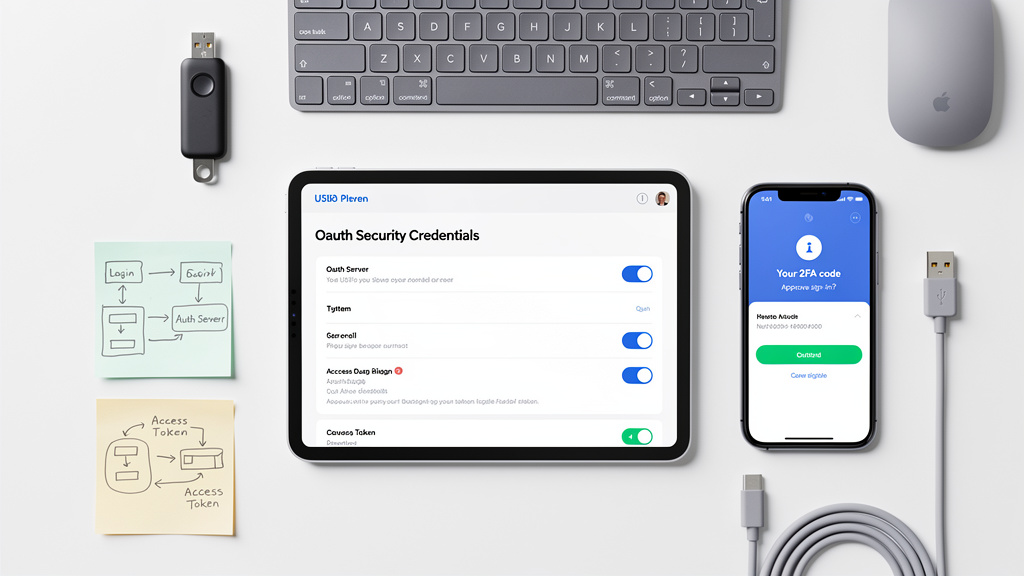
Before building any n8n LinkedIn workflow, you need a clean setup: accounts, permissions, and a simple test flow.
You will need:
- An n8n instance (cloud or self‑hosted) with rights to create credentials and workflows
- A LinkedIn personal profile
- Page admin rights if you plan to post to a company page
Then:
- In n8n, create a new workflow and add a LinkedIn node.
- Click to add credentials; n8n opens an OAuth window.
- Sign in to LinkedIn and approve access.
- n8n stores a secure token so the n8n LinkedIn node can publish on your behalf.
Remember, LinkedIn’s API still follows your LinkedIn permissions. If your user cannot post to a company page inside LinkedIn, the node cannot either. When posts fail, read the error message in n8n, then double‑check page admin roles and which account you used during OAuth.
Security basics:
- Do not share screenshots that show token details.
- Limit who can edit credentials in n8n, and use role‑based access where possible.
- In self‑hosted setups, protect n8n behind a VPN or secure reverse proxy.
To confirm everything works, build a quick test:
- Add a Manual Trigger node.
- Add a LinkedIn node set to create a short text post on your profile.
- Run the workflow and check LinkedIn for the test post.
Once that succeeds, you are ready for more advanced LinkedIn automation.
Choosing Between Self-Hosted And Cloud Deployment
Both deployment options work well for n8n LinkedIn automation, but they suit different teams.
Cloud hosting:
- Fastest way to start—no servers or DevOps work
- Automatic updates and backups
- Great for small marketing teams or solo founders who want results quickly
Self‑hosting:
- More control over data location and access
- Easier to align with strict security or compliance policies
- Often more cost‑effective at high volume if you already run other services on the same infrastructure
Many teams start with cloud, prove value, then move to self‑hosting as n8n LinkedIn workflows expand and touch more systems.
Core n8n LinkedIn Actions You Can Automate
The n8n LinkedIn integration focuses on content posting, but once you connect it to AI, databases, and schedulers, it covers a wide range of needs.
Key actions include:
- Text posts – Publish status updates to a personal profile or company page. Text can come from AI models, spreadsheets, or RSS feeds.
- Image + text posts – Upload an image (file or URL) with a caption. Images can come from Google Drive, design tools, or AI image generators.
- Scheduling – Combine the LinkedIn node with a Cron node or other triggers so posts go out at set times and days.
There are also clear limits. LinkedIn’s official API does not support:
- Automated connection requests
- Mass DMs
- Heavy scraping or imitation of human browsing
Trying to script these with HTTP Request nodes can conflict with LinkedIn’s rules and put accounts at risk. Stick to posting and content workflows for long‑term safety.
Many companies post from:
- A company page for brand updates
- Personal profiles for leaders and subject‑matter experts
The n8n LinkedIn node can help generate drafts for employees to share manually, even if it does not click “Share” on their behalf.
Building Your First n8n LinkedIn AI-Powered Workflow
Now let’s build a practical n8n LinkedIn workflow that combines AI copywriting with scheduled posting.
A simple pattern looks like this:
- Trigger
- Add a Cron node to run daily or only on weekdays at a set time.
- This replaces calendar reminders and keeps posting consistent.
- Data Source
- Many teams start with Google Sheets: one row per idea with topic, reference link, and audience.
- Add a Google Sheets (or Notion/Airtable) node that reads one “pending” row per run.
- AI Copywriting
- Add an AI node (OpenAI, Claude, Gemini, or another model via HTTP Request).
- In the prompt, spell out tone, length, and structure: for example, a clear LinkedIn post for mid‑level marketers, with a hook, one main insight, and a short call to action.
- Draft Or Publish
- Map the AI output into the n8n LinkedIn node.
- During early testing, send drafts to Slack or email for review instead of auto‑publishing.
- Once prompts are solid, switch some or all posts to automatic publishing.
- Test And Tune
- Run the workflow manually with a sample row.
- Check formatting, links, and voice before going live.
- After a week or two, compare engagement against past manual posts.
“Great automation still needs a human editor the first few times it runs.” — VibeAutomateAI
Integrating AI Image Generation For Visual Content
Text‑only posts work, but visuals often draw more attention in the feed. You can extend the same n8n LinkedIn workflow with AI image generation.
Typical steps:
- Pick a provider such as DALL‑E, Replicate, or another image API.
- Add a dedicated node or HTTP Request node that sends a prompt and receives an image URL or file.
- Write prompts that describe style, colors, and format. Many brands keep a reference image in Google Drive and pass that URL to keep style consistent.
- Store the output image in Drive, S3, or similar storage.
- Pass the file or URL into the n8n LinkedIn node along with the caption.
Watch image size and aspect ratio so posts look good in the feed, and limit AI image generation to the posts where visuals matter most.
n8n LinkedIn Content Creator System: Complete Implementation
The workflow above shows what is possible. Now scale it into a full n8n LinkedIn Content Creator System that covers ideation, research, writing, images, approvals, and scheduled posting.
Core pieces:
- Content database – A Google Sheet, Notion database, or Airtable base with fields for idea, source link, persona, status, draft copy, image URL, publish date, and performance notes.
- Research – A Cron node picks ideas and sends keywords or links to a research API such as Perplexity or another search tool. n8n stores short summaries so AI writers have fresh material.
- Writing – An AI text node uses your brand voice rules (tone, audience, do/don’t phrases) to create drafts. Prompts and outputs are written back into the content database.
- Images – In parallel, an image workflow (DALL‑E, Replicate, etc.) creates visuals based on the same idea and copy, then stores the image URL in the same row.
- Approvals – n8n sends drafts to Slack, Microsoft Teams, or email. Approvers change a status field or click simple buttons; the workflow checks status before posting.
- Publishing – A second Cron node looks for approved, unscheduled items and publishes the next one, then logs the LinkedIn URL and timestamp.
- Analytics – Performance data from LinkedIn (exports or API) is loaded back into the table so you can see which topics, formats, and times perform best.
At VibeAutomateAI, we often turn this entire pattern into a visual diagram so teams can adapt it to their own stack without losing the big picture.
Customizing The System For Your Brand Voice
No two brands speak the same way, so your n8n LinkedIn system needs to reflect your voice.
Practical steps:
- Write a short internal style guide: tone (formal vs. casual), sentence length, and phrases you like or avoid.
- Embed that guide directly into AI prompts.
- Add a few example posts that feel on‑brand and ask the model to follow that pattern.
- Run small A/B tests: send the same idea through two prompts or models, label each version, and compare performance.
Keep human reviewers in the loop—especially early on—to catch off‑brand phrasing or sensitive topics before anything goes live.
Scaling The System For Multiple Accounts Or Clients
Agencies and multi‑brand companies often need n8n LinkedIn workflows for many pages and profiles.
A common pattern is:
- Build a master workflow template that accepts variables such as brand name, credential set, content database, and prompts.
- For each client or internal brand, supply different variables while reusing the same structure.
- Keep content calendars in shared views (Sheets, Notion, Airtable) with filters per brand.
- Route approvals to brand‑specific Slack channels or email groups.
- Track execution counts and API usage per account so billing or internal chargebacks match actual usage.
This keeps data separated while still giving you one consistent automation framework.
High-Impact n8n LinkedIn Use Cases Beyond Content Creation
Once n8n LinkedIn sits in the middle of your stack, it can support far more than basic posting.
Examples:
- Lead handling – Watch form fills or demo requests, enrich leads with LinkedIn profile URLs via third‑party APIs using workflows to Monitor LinkedIn Competitor Engagement, then notify sales in Slack and draft suggested LinkedIn messages for reps to send manually.
- Job posts – When new roles go live in an ATS, grab the job details, send them to an AI model for clean LinkedIn copy, attach a branded image, and publish on the company page.
- Event promotion – Connect webinar or event tools so each event triggers a mini campaign: announcement, reminder, last‑chance post, and follow‑up sharing recordings or key takeaways.
- Employee advocacy – Push approved content suggestions to a dashboard or internal newsletter so employees can copy, adapt, and publish on their own profiles.
- Market monitoring – Watch RSS feeds, news APIs, or Reddit threads, summarize key points with AI, and create internal LinkedIn‑style drafts for leaders to post.
- Reporting – Feed LinkedIn stats into Google Sheets or BI tools so marketing and sales teams can tie LinkedIn activity directly to pipeline or hiring.
n8n LinkedIn Multi-Platform Social Media Orchestration
Most brands do not live only on LinkedIn. The same n8n LinkedIn workflows can sit inside a wider social setup that also covers X, Facebook, and Instagram.
A simple pattern:
- Use a shared content source (Notion, Airtable, or Sheets) with one row per message.
- An AI node creates several variations from that row:
- One tailored to LinkedIn
- One shortened for X
- One shaped into an Instagram or Facebook caption
- Separate branches in n8n send each version to the right platform node.
- Cron nodes or calendar triggers pick posting times per channel (e.g., mornings on LinkedIn, evenings on Instagram).
- Another workflow pulls engagement data from all platforms into a single table so you can see what works everywhere versus what only shines on LinkedIn.
This “create once, adapt everywhere” method keeps writing and design effort manageable while still giving each channel a natural fit.
Advanced Customization And Technical Optimization
For technical teams, n8n LinkedIn automation can go far beyond drag‑and‑drop.
Areas to explore:
- Custom actions – Use HTTP Request nodes or custom nodes to call additional LinkedIn API endpoints that are allowed but not covered by the standard node, such as specific analytics endpoints.
- Error handling – Add retry logic and error workflows so a failed AI call or upload does not stop the whole pipeline. For example, skip the failing item, log the issue, and alert a Slack channel.
- Data handling – Use Function or Code nodes to normalize fields, remove duplicates, and join data before it reaches LinkedIn. Favor webhooks over polling when possible so workflows fire as soon as systems change.
- Version control – Export workflows as JSON, store them in Git, and use pull requests to review changes. Document each workflow with clear names and comments. VibeAutomateAI often recommends keeping a small internal “catalog” so new team members can see how key LinkedIn automation flows work.
Cost Analysis: n8n vs. Alternative Tools
Cost for n8n LinkedIn automation has three layers: n8n itself, connected APIs, and human time.
n8n hosting
- Self‑hosted n8n – You pay for server time and administration. There are no per‑workflow or per‑seat charges, so adding more n8n LinkedIn flows does not spike your license bill.
- n8n Cloud – You pay based on execution volume and features. For many small and mid‑sized teams, this often replaces several separate tools (social schedulers plus basic automation platforms) at a lower combined cost.
By contrast, tools like Zapier or Make usually price by task volume and number of automations, and schedulers like Hootsuite or Buffer add extra subscriptions on top if you still need them.
External APIs
- OpenAI, Perplexity, image generators, and other APIs charge by volume and model.
- You can manage these costs by tuning prompts, reusing research outputs, and reserving high‑end models for top‑priority campaigns.
Human time
At VibeAutomateAI, we often compare “hours per week spent on LinkedIn tasks” before and after n8n LinkedIn deployment. If a marketer saves even three to five hours weekly and shifts that time into strategy or sales support, the payback period for n8n plus API usage is usually short, even for smaller teams.
Troubleshooting Common Integration Issues
Even well‑designed n8n LinkedIn workflows can run into problems. The usual suspects:
- Authentication errors – Tokens expire or get revoked. Reopen credentials, reconnect via OAuth, and confirm you used the right account with active page admin rights.
- Rate limits – Posting too often in a short window can trigger “too many requests” errors from LinkedIn or AI providers. Spread posts across time using Cron nodes and queues.
- Image upload issues – Check file format, size, and access permissions. Test with a small static image to see if the problem is your storage or LinkedIn.
- Scheduling surprises – Timezone mismatches between your n8n instance, Cron nodes, and team expectations are common. Log planned publish times into your content database so you can see exactly when each post should fire.
- Unclear failures – Use n8n’s execution log to step through each node, compare successful and failed runs, and inspect inputs/outputs.
When you are stuck, the n8n community forum, official docs, and guides from VibeAutomateAI are good places to look for patterns and fixes.
Best Practices For LinkedIn Automation Compliance
Powerful n8n LinkedIn automation needs guardrails to keep accounts safe.
Key principles:
- Follow LinkedIn’s terms of service. Avoid automating connection requests, bulk messages, scraping, or anything that imitates human browsing at volume.
- Focus automation on content posting, analytics, and internal coordination—areas LinkedIn’s API is built to support.
- Respect rate limits and avoid workflows that flood feeds with posts, comments, or tags. If a tactic feels spammy by hand, it is risky at automation speed.
- Keep humans in charge of comments, replies, and one‑to‑one outreach. n8n can draft messages; people decide what actually gets sent.
- For AI content, use strong review steps for accuracy and fairness. Do not recycle full articles without credit, and avoid misleading claims.
“If a tactic would look spammy by hand, automation will only magnify the problem.” — VibeAutomateAI
Measuring Success: Analytics And Optimization

Automation only pays off if results improve. With n8n LinkedIn, you can loop performance data back into your workflows.
Start by picking metrics such as:
- Impressions, reactions, comments, and shares
- Click‑through rate and follower growth
- Qualified leads or applicants linked to posts
- Content output per week and hours of manual work saved
Then:
- Use LinkedIn’s API or exports to pull analytics into a spreadsheet or database.
- Match each performance row to the content record that produced it (using post URL or ID), and consider workflows that Analyze Competitor LinkedIn Posts to benchmark your performance against industry standards.
- Build dashboards in Looker Studio, Power BI, or Google Sheets to slice results by topic, format, author, or posting time.
- Run A/B tests on prompts, image styles, and call‑to‑action phrases, and keep the versions that win.
Set a recurring review—monthly works well—to tweak prompts, schedules, and workflows based on real data rather than hunches.
Management thinker Peter Drucker often noted, “What gets measured gets managed.”
Conclusion
LinkedIn sits at the center of many marketing, sales, and hiring strategies, but manual posting and copy‑paste workflows cannot keep up. n8n LinkedIn automation offers a practical way to scale output, maintain quality, and connect LinkedIn activity to the rest of your stack.
Start with clean setup, a basic AI‑assisted posting flow, and simple scheduling to see quick gains. From there, the LinkedIn Content Creator System adds research, images, approvals, and analytics so the channel runs with far less manual effort.
At VibeAutomateAI, we focus on making these systems clear and usable. Our guides, comparisons, and examples help teams choose models, design safe workflows, and measure return. The best progress rarely comes from a grand plan—it comes from launching one small n8n LinkedIn workflow this month, learning from it, and then building the next.
FAQs
Do I Need Coding Skills To Use n8n For LinkedIn Automation?
You can build many n8n LinkedIn workflows without formal coding skills. The visual editor lets you drag nodes onto a canvas and connect them like a process diagram. Basic logic (if‑else rules, loops) is helpful but not mandatory. Coding becomes useful when you want custom functions, advanced data shaping, or direct HTTP calls. For non‑technical users, resources from VibeAutomateAI and the n8n community provide step‑by‑step examples.
Can I Use n8n To Automate LinkedIn Connection Requests Or Direct Messages?
By default, the n8n LinkedIn node focuses on content posting, not connection requests or DMs. LinkedIn’s official APIs limit automated contact actions to reduce spam and abuse. A skilled developer might try to script such actions in other ways, but that can violate LinkedIn’s rules and risk account restrictions. A safer pattern is to let n8n draft personalized messages based on CRM data and send them to sales reps, who then review and send them manually.
How Does n8n Compare To Tools Like Hootsuite Or Buffer For LinkedIn?
Hootsuite, Buffer, and similar platforms focus on social scheduling, inbox management, and collaboration. They shine when your main need is to plan posts and reply from a shared interface. n8n sits in a different category: it is an automation platform that connects n8n LinkedIn posting with AI, CRMs, ATS tools, and custom data flows. Some companies keep a social tool for community management but rely on n8n to feed that tool—and LinkedIn itself—with smarter, AI‑ready content and structured data.
What AI Models Work Best With n8n For LinkedIn Content Generation?
Several models work well inside n8n LinkedIn workflows. GPT‑4 and newer OpenAI models provide polished business copy and strong reasoning. Claude and Gemini handle long context and nuanced tone, which is helpful for thought‑leadership posts. Open‑source models like Mistral or Ollama suit teams that want more control and are ready to invest time in tuning. Prompt quality matters as much as model choice, so clear instructions and good examples usually bring the biggest gains.
How Can Agencies Use n8n To Manage Multiple Client LinkedIn Accounts?
Agencies can set up n8n LinkedIn workflows with a multi‑tenant mindset. Each client gets its own LinkedIn credentials, content database, and brand prompts, while all share the same core workflow design. Environment variables or configuration files tell n8n which set to use on each run. Approvals go to client‑specific Slack channels or email lists, and analytics feed into per‑client dashboards. This structure makes it easier to onboard new clients and keep data clearly separated.
Is There A Risk Of My LinkedIn Account Being Restricted For Using Automation?
There is always some risk when automation touches a third‑party platform, and n8n LinkedIn workflows are no exception. That risk stays low when you focus on supported actions like content posting at reasonable volume and avoid grey‑area tactics such as mass DMs or aggressive connection scripts. LinkedIn mainly watches for spam, abuse, and tools that mimic human browsing. By keeping human review in the loop and following guidance from VibeAutomateAI on safe patterns, you can gain the benefits of automation while keeping accounts in good standing.
Read more about n8n Sales Automation: AI Secrets You Need for Top Results
[…] 8 minutes ago 19 min read […]
[…] Read more on n8n LinkedIn Integration: The Full Automation Guide You Need […]
[…] Read more about n8n LinkedIn Integration: The Full Automation Guide You Need […]
[…] Read more about n8n LinkedIn Integration: The Full Automation Guide You Need […]